Zum Inhalt

2024

5 must-have integrations for Home Assistant

As of today, there are 2377 integrations for Home Assistant. An integration means that new functions are added. These can be extensions such as very conveniently adjustable timers or statistics functions, but also the connection of devices such as heat pumps, heating controls, televisions, smart lights, PV systems or electric cars. Of course, there are also integrations for almost all building automation standards such as KNX, LCN Issendorff, Loxone, Homematic and many others.

These integrations make Home Assistant the central hub for all smart devices in the home and enable systems, no matter how different, to be controlled and read out together. For example, when a call is received via an AVM Fritzbox, the ceiling lights can flash while the volume of the TV is reduced at the same time.

Especially in the current energy crisis, these options help to save energy by allowing heating systems to be controlled much more intelligently than the manufacturers intended. For example, presence, the weather forecast and much more can be used to optimise heating control.

1. HACS – the integration for integrations

HACS is an extension that enables access to the “Community Store”. It contains integrations that have been created by users and there are lots of interesting options here. For example, I use Irrigation Unlimited for my DIY irrigation controller.

HACS can be installed with one click and is a treasure trove for almost any requirement. At HACS you will also find new options for your dashboards, interesting cards and much more.

Click here for the HACS page with further information and installation instructions

2. Power Calc – measure power consumption without tools

Power Calc can be used to determine the power consumption of many devices without the need for energy measuring devices such as a smart socket or the Shelly 3EM, which I really like.

Power Calc recognises many devices such as Philips Hue lights, IKEA Tradfri, innr, WLED applications, but also other consumers if you can assign a fixed power consumption to them.

Power Calc finds compatible devices directly

For example, if you know that the lighting in the kitchen consumes 32 watts because it consists of 8 LED spotlights with 4 watts of power, you can create a virtual consumption sensor from this. This then automatically records the consumption when the lighting is in operation.

Even dimmed light sources can be recorded with astonishing accuracy if their consumption at different brightness levels is recorded beforehand with a consumption meter and a corresponding conversion is integrated, which could look something like this:

sensor:
  - platform: powercalc
    entity_id: light.living_room_ceiling_lighting
    linear:
      calibrate:
        - 1 -> 0.3
        - 10 -> 1.25
        - 50 -> 3.50
        - 100 -> 6.8
        - 255 -> 15.3

This means that non-linear consumption, which is particularly the case with classic incandescent lamps with filaments that are dimmed, can also be recorded with Power Calc.

You can find Power Calc in the HACS Store. Click here for Power Calc on GitHub.

3. Your heating control – example Vissmann ViCare

Home Assistant offers integrations for many heating manufacturers and heat pumps. Partly as an official integration, but often via HACS.

We use a Viessmann gas boiler that has an internet gateway. This can be read out with the ViCare integration and various control options are also possible. In the free version, however, this is subject to an API limit that allows 1450 calls per 24 hours. This is sufficient for evaluation and control if, for example, 90 second intervals are set (standard 60 seconds).

Measured values from the ViCare integration of our heating system

Depending on the manufacturer, this type of integration can be used to determine not only the current flow temperatures, the set temperatures for normal and reduced operation, hot water or gas consumption. It can also be used to actively intervene in the heating control system.

Heating control systems – and those from Viessmann in particular – are actually quite a nuisance because the control behaviour can hardly be understood and even specialist companies have no idea why the system does what it does. The main thing is that it gets warm …

With the integration of the heating in Home Assistant, you can now control specific heating circuits or switch off the heating completely. For example, I switch off the heating circuit for the underfloor heating and radiators when my reference rooms (living room and office) are over 22 °C and the bathroom is over 23 °C between 6.30 and 8.00 on weekdays and 7.30 and 10.00 at weekends.

The Viessmann control system would otherwise continue to heat the room happily. Thanks to various optimisations in the control system itself and the additional integration into Home Assistant, we were able to reduce our gas consumption by over 40 % in 2022 compared to 2021 – with the same (and in some cases better) level of comfort. Such integrations are also available for heat pumps from Nibe, Panasonic and Daikin, for example.

3. Thermal Comfort – perceived temperature, dew point and absolute humidity

Thermal Comfort is a helper function that calculates many important parameters from the measured temperature and humidity. This is how the perceived temperature is determined, because a room temperature of 22 °C does not always have to be pleasant.

Some Thermal Comfort measured values

The absolute humidity is just as important. Only with this can a ventilation recommendation be given without any doubt. If the abs. humidity outside is below the abs. humidity inside, you can ventilate without hesitation. Otherwise, the window must remain closed, otherwise you will bring in even more humid air.

I have written more about this in this article https://nachbelichtet.com/richtig-lueften-mit-hilfe-des-smart-homes/. The values from Thermal Comfort can then also be used to control specific displays that prompt you to ventilate, control the humidifier and dehumidifier and provide information on the dew point.

You can find Thermal Comfort in the HACS Store. Click here for the GitHub page.

4. ESPHome – build your own sensors, displays and controls

ESPHome is an official integration of Home Assistant. It allows you to build your own hardware based on ESP microcontrollers and integrate it seamlessly into Home Assistant. Not only is this fun, but you can also use it to solve highly customised control and measurement problems.

ESPHome Multisensor mit Display DIY

ESPHome Sensor

My DIY irrigation control for Gardena sprinklers runs with it, as does the temperature measurement of my heating system (stratified storage tank, flow and return temperatures) or the water level measurement in our rainwater cistern.

With the ESPHome platform, many inexpensive sensors and displays can be used to build your own smart devices. ESPHome microcontrollers can be programmed and updated directly from Home Assistant, making it much easier to create your own functions.

More information: ESPHome page

AngebotBestseller Nr. 1OSRAM Smart+ LED, ZigBee Lampe mit E27 Sockel, warmweiß, dimmbar, Direkt kompatibel mit Echo Plus und Echo Show (2. Gen.)OSRAM Smart+ LED, ZigBee Lampe mit E27 Sockel, warmweiß, dimmbar, Direkt kompatibel mit Echo Plus und Echo Show (2. Gen.)

  • ZigBee Produkt -> Erweitern Sie Ihr Smart Home: Direkt steuerbar über Amazon Echo Show und Amazon Echo Plus. Für die Nutzung mit Amazon Echo, Amazon Echo Dot und Amazon Echo Spot ist ein zusätzliches Gateway nötig
  • Kompatible Smart Home Systeme: Osram Lightify, Telekom Magenta, Quivicon, Samsung SmartThings, Schwaiger4You und viele mehr
  • Echter Ersatz für eine 60W Glühbirne -> LED Glühlampe mit matter Oberfläche und E27 Sockel für den gewohnten einfachen Austausch 11,99 EUR −57% 5,11 EUR Amazon PrimeJetzt bei Amazon kaufenAngebotBestseller Nr. 2SONOFF ZBMINIR2 Zigbee Smart Schalter, Zigbee 3.0 Lictschalter, Zigbee Smart Switch Funktioniert mit Alexa & Google Home, Zigbee Hub Erforderlich, Neutralleitung ErforderlichSONOFF ZBMINIR2 Zigbee Smart Schalter, Zigbee 3.0 Lictschalter, Zigbee Smart Switch Funktioniert mit Alexa & Google Home, Zigbee Hub Erforderlich, Neutralleitung Erforderlich

  • 【Intelligente Steuerung】Der ZBMINIR2 ist ein Zigbee 3.0 Ein-Kanal-Neutralleitungsschalter, der in einer Montagekasten installiert werden kann und eine maximale Last von 10 A unterstützt, womit er einfache Schalter intelligent macht.

  • 【Miniaturisierte Größe】Mit 3,95 x 3,3 x 1,68 cm passt er in jede Standard-Einbauschiene. Er benötigt eine NEUTRALLEITUNG und unterstützt eine maximale Leistung von 2200 W.
  • 【Personalisierter Lichtsteuerung】Machen Sie Ihre Beleuchtungssysteme intelligent an/aus. Sie können die Geräte leicht konfigurieren und ihre Einstellungen individuell verwalten oder verschiedene Geräte kombinieren, um spezifische Aktionen in Ihrem Heimautomatisierungssystem auszulösen. 12,90 EUR −27% 9,40 EUR Amazon PrimeJetzt bei Amazon kaufenAngebotBestseller Nr. 3SONOFF SNZB-02LD Zigbee wasserdichter Temperatursensor mit 1,5 m Edelstahlsonde, LCD-Display, -40~115°C Bereich, APP-Überwachung, magnetische Halterung, kompatibel mit Zigbee-HubSONOFF SNZB-02LD Zigbee wasserdichter Temperatursensor mit 1,5 m Edelstahlsonde, LCD-Display, -40~115°C Bereich, APP-Überwachung, magnetische Halterung, kompatibel mit Zigbee-Hub

  • Wasserdichtes Design:Die IP65-zertifizierte Hauptvorrichtung widersteht Wasserplatschungen und eignet sich daher für nasse Umgebungen wie Pools, Badewannen oder Küchen, ohne die Leistung einzubüßen.

  • Breiter Temperaturbereich:Ausgestattet mit einer 1,5 m langen 304-Edelstahlsonde für genaue Messungen von -40°C bis 115°C, ideal für Messungen in Kühlschränken, Lüftungskanälen, Gärflaschen und vielem mehr.
  • Echtzeit-LCD-Display:Klares, hochauflösendes LCD-Bildschirm zeigt die aktuelle Temperatur sofort an, sodass Sie nicht jedes Mal Ihr Telefon überprüfen müssen. 21,89 EUR −23% 16,92 EUR Amazon PrimeJetzt bei Amazon kaufenAngebotBestseller Nr. 4SONOFF S60ZBTPF Zigbee Steckdose – Fernsteuerung, Energiemessung, Zigbee-Repeater, Zeitpläne, Überlastschutz, kompatibel mit der eWeLink-App - Erfordert Zigbee-GatewaySONOFF S60ZBTPF Zigbee Steckdose – Fernsteuerung, Energiemessung, Zigbee-Repeater, Zeitpläne, Überlastschutz, kompatibel mit der eWeLink-App – Erfordert Zigbee-Gateway

  • Fernsteuerung – Geräte von überall aus verwalten Steuern Sie Lampen, Ventilatoren oder kleine Geräte bequem über eine Smart-App. Schalten Sie Geräte mit nur einem Tipp auf Ihrem Smartphone ein oder aus – egal ob Sie bei der Arbeit, auf Reisen oder zu Hause sind – und machen Sie sich nie wieder Sorgen über „vergessene Geräte“.

  • Timer & Zeitpläne – Automatisieren Sie Ihren Alltag Stellen Sie individuelle Timer, Countdowns oder wiederkehrende Zeitpläne ein, um Geräte automatisch zu steuern. Beispiele: Starten Sie die Kaffeemaschine um 7 Uhr, schalten Sie die Schlafzimmerlampen um 23 Uhr aus oder stoppen Sie Ladegeräte nach 2 Stunden. Passt sich mühelos Ihrem Alltag an.
  • Energieüberwachung – Verbrauch verfolgen, Kosten senken Sehen Sie Echtzeit- sowie tägliche, wöchentliche und monatliche Energiedaten in der eWeLink-App. Erkennen Sie stromintensive Geräte, passen Sie Ihr Nutzungsverhalten an und senken Sie Ihre Stromkosten mit klaren, umsetzbaren Erkenntnissen. 16,39 EUR −20% 13,19 EUR Amazon PrimeJetzt bei Amazon kaufenAngebotBestseller Nr. 5SONOFF SNZB-02D Zigbee Temperatur- und Feuchtigkeitssensor,Zigbee LCD Smart Thermometer Hygrometer,Zigbee Hub Erforderlich,Temperature Humidity Sensor Kompatibel mit Alexa/Google Home/Home AssistantSONOFF SNZB-02D Zigbee Temperatur- und Feuchtigkeitssensor,Zigbee LCD Smart Thermometer Hygrometer,Zigbee Hub Erforderlich,Temperature Humidity Sensor Kompatibel mit Alexa/Google Home/Home Assistant

  • 【Fernüberwachung in Echtzeit】Der SNZB-02D Zigbee Temperatur- und Feuchtigkeitssensor überwacht die Temperatur und Luftfeuchtigkeit in Echtzeit auf der APP aus der Ferne oder auf dem Bildschirm mit einer Abdeckung von bis zu 120 m/400 ft.

  • 【Hohe Genauigkeit und 5 Sekunden schnelle Aktualisierung】SONOFF Thermometer Hygrometer Sensor Eingebauter, in der Schweiz hergestellter, intelligenter Hygrometersensor, der Ihnen genauere Messwerte liefert und eine Genauigkeit von ±0,2 °C/±0,4 °F bei der Temperatur und eine Genauigkeit von ±2 % RH bei der Luftfeuchtigkeit beibehält, aktualisiert die Messwerte alle 5 Sekunden.
  • 【Großes LCD Display】Verwenden Sie ein großes LCD Display, um die Echtzeitwerte der Temperaturfeuchtigkeit klar und dynamisch anzuzeigen. Mit den intuitiven Anzeigesymbolen können Sie die Raumbedingungen und den Batteriestatus noch einfacher als je zuvor überprüfen. 15,71 EUR −16% 13,20 EUR Amazon PrimeJetzt bei Amazon kaufen

5. ZHA – ZigBee Home Automation. The alternative to the Philips Bridge

ZigBee is one of the standards in the smart home. The popular Hue lamps and devices from Philips are based on this standard, as are IKEA’s Tradfri, Aqara sensors and lamps from Lidl and Müller Licht.

ZigBee Netzwerk

An excerpt from our ZigBee network with ZHA

Unfortunately, the Philips Bridge cannot communicate with all devices. This is remedied by the official ZigBee integration of Home Assistant, abbreviated to ZHA. This allows ZigBee devices from almost all manufacturers to be connected and controlled directly with Home Assistant. This requires, for example, the Sonoff ZigBee 3.0 USB Dongle Plus. Recently, there is also an “official” ZigBee stick from Home Assistant, the Sky Connect Stick.

ZHA works stably, is directly integrated and is simply fun. More information: https://www.home-assistant.io/integrations/zha/

Additional tip: Studio Code Server

If you use Home Assistant Supervised, you should definitely also install the Studio Code Server. This gives you Microsoft’s excellent VSCode programming environment directly in the browser and in Home Assistant. Not only can you edit Home Assistant configuration files conveniently and with code completion, but you can also programme ESPHome projects much more easily.

ESPHome programming with VSCode

The Studio Code Server is an add-on and not directly an integration. Add-on means that it is an application that runs as a Docker container in the Supervised environment.

Studio Code Server Add-on project page

These were my 5 recommendations for Home Assistant integrations that I use myself. Of course, the individual requirements are decisive and the mass of extensions and add-ons, which is still growing daily, makes it almost impossible to give general recommendations. However, I am sure that these extensions for Home Assistant will also be of use to you.

Home Assistant and Amazon Alexa without Nabu Casa: faster and more reliable

We have an Amazon Echo in almost every room, which we use not only to listen to the radio and music, but also to control many things in the house. Home Assistant and the paid but simple connection of the voice assistant via the Nabu Casa Cloud make it possible in no time at all. Nabu Casa is a company that emerged from the Home Assistant makers. For 5 euros per month, you not only get a simple way to connect voice assistants such as Alexa or the Google Assistant, but also secure remote access. It also supports the further development of Home Assistant, which is an excellent thing.

This is what my list of devices for Alexa via the Nabu Casa Cloud looked like so far

For some time now, however, there have been problems with the connection of voice assistants via Nabu Casa. Apparently, the huge success of HA has meant that the service, which connects home assistants and assistants to the relevant providers without much configuration effort, has become very slow and unreliable. If you want to execute a command, it often takes several seconds. In addition, Alexa acknowledges the command by saying that the corresponding device would not respond. A short time later, the command is executed anyway.

This is not only annoying, but also significantly reduces the WAF (Women’s Acceptance Factor). However, as we use these services regularly because we both work from home, I have changed my Alexa connection.

NGINX Proxy Manager for external access to Home Assistant

Full instructions are available at Home Assistant and this video also helps to master the rather complex configuration.

You need a free Amazon Developer account to access the AWS services. In addition, Home Assistant must be accessible via SSL using port 443 and a fixed address. We have a fixed IP address for our DSL connection here, which I resolve in the DNS of my domain provider via a subdomain. A Docker container with an NGINX proxy server runs on my server in front of Home Assistant, which manages the certificates and also provides some security.

Home Assistant itself offers similar functions in the supervisor and DuckDNS can also be used here if you have a dynamic IP address to the outside. Accessibility from the outside, including valid SSL certificates, must work and be tested before further setup.

Addons for NGINX, Let’s Encrypt and Duck DNS in the Home Assistant addon store

I needed about 45 minutes for the complete setup. In this context, you also create your own Alexa skill, which takes over future control. Overall, this is very interesting because it also gives you a little insight into the basics of skill development for Alexa.

Once everything has been tested, the previous configuration of the devices and entities that are to be synchronised with Alexa and accessible there is no longer necessary and must be replaced by an extension of HA configuration.yaml. However, this also allows you to set which services can be used with which name and voice command with Alexa in a much more granular and targeted manner.

Your own Alexa skill for controlling the Home Assistant

I have outsourced this configuration to a separate file alexa.yaml and integrated it into my configuration.yaml. I first excluded all domains, i.e. lamps, switches, sensors etc. from Alexa with exclude_domains: and then included them specifically using include_entities.

smart_home:
  locale: de-DE
  client_id: amzn1.application-oa2-client.40cd01
  client_secret: 062e0ca88560015b9ee
  filter:
    exclude_domains:
      - automation
      - alert
      - input_boolean
      - media_player
      - binary_sensor
      - switch
      - camera
      - light
      - automation
      - script
      - sensor
      - device tracker
      - lock
      - fan
      - remote
      - alarm_control_panel
      - input_select
      - input_number
      - person
      - sun
      - climate 
      - weather
      - zone
      - persistent_notification
      - air_quality

    include_entities:

      - group.bedroom_light
      - group.living_room_light
      - group.kitchenlight
      - group.officelight        
      - group.studio light
      - group.bathroom light
      - group.workshop light
      - group.outdoor light

      # Kitchen lamps
      - light.kitchen_light
      - light.kitchen_island
      - light.kitchen_head
      - light.kitchen_window
      - light.kitchen_counter

The entity_config can then also be used to determine how the entity should be addressed in Alexa – completely independently of the name of the entity in Home Assistant:

 entity_config:

    light.burolicht:
      name: Office light
      description: Office lighting
      display_categories: LIGHT

    light.buro_markus:
      name: Office Markus
      description: Office Lighting Markus
      display_categories: LIGHT

    light.wz_leselicht:
      name: Reading light
      description: Reading light living room
      display_categories: LIGHT

    light.wz_spots:
      name: Ceiling spots
      description: Living room ceiling spots
      display_categories: LIGHT

    light.kitchen_counter:
      name: Counter
      description: Light kitchen counter
      display_categories: LIGHT

The display_categories ensure that the entity is assigned to a device class in Alexa (e.g. LIGHT, COVER, SWITCH, LOCK etc.), which in turn is good for the overview. This part of the configuration takes almost more time than the actual configuration – but it’s worth it!

Since you need secure external access to HA to connect Alexa manually anyway, the service offered by Nabu Casa is no longer necessary.

Everything so quickly at once!

I was actually surprised at how quickly the commands are now executed without having to take a diversion via a (currently overloaded) third-party server. Even when I was still using Symcon, communication took place via the Symcon service. So I’ve never had a direct comparison. But other services such as Philips Hue etc. were also slower than this solution.

The commands are executed immediately without any noticeable delay and are acknowledged with “PALIM!”. Since then, there have been no more reports of a device not responding.

Flash briefings for Alexa

So euphoric, I immediately set about creating my own flash briefing for Alexa, which gives me an overview of important values and statuses in response to the question “Alexa, what’s new?”. For example, the current outside temperature, whether it’s raining and the charge level of our Tesla Model 3 (our McFly):

flash_briefings:
  password: xxxxxxxx
  weather:
    title: What's the weather like?
    text: >
      It is currently {{ states("sensor.wih_temp_outside") }} outside Degrees
      {% if is_state('binary_sensor.wih_regen', 'on') %}
        and it is raining.
      {% else %}
        and it is dry. 
      {% endif %}
        The perceived temperature is {{ states("sensor.weewx_feel_temperature")}} Degrees.

      {% if is_state('binary_sensor.garage_closed', 'on') %}
        The garage door is closed.
      {% else %}
        The garage door is open.
      {% endif %}

      {% if is_state('binary_sensor.garage_window', 'off') %}
        The garage window is closed.
      {% else %}
        The workshop window is open.
      {% endif %}

      {% if is_state('switch.studio_sd_rack', 'on') %}
        The power in the studio is on.      
          {% if is_state('switch.post-exposure', 'on') %}
            and the PC in the studio is still on.
          {% endif %}
      {% endif %}

      {% if is_state('binary_sensor.haustur', 'off') %}
        The front door is closed.
      {% else %}
        The front door is open.
      {% endif %}

        McFly has {{states("sensor.mcfly_battery_sensor")}} Kilowatts charged and its range is {{states("sensor.mcfly_range_sensor")}} Kilometres.
        The gas consumption so far today has been {{states("sensor.gasconsumption_kwh")}} Kilowatt hours and {{states("sensor.strom_stats_w")}} Watts of electricity are being consumed.

I still have a lot of ideas for this area and I will refine it so that certain states are only announced when an action is required, e.g. “Please close the workshop window!”. All window and door sensors will also be added here.

Conclusion

The direct connection of Alexa to Home Assistant is not a trivial matter and requires a lot of time and effort. But the reward is a very fast system. According to Reddit, the Home Assistant developers at Nabu Casa are already working on a solution to the problem with their cloud. However, this will probably not be ready until the end of February. However, I will definitely be sticking with my individual connection. There are two reasons for this:

  • It’s faster because there’s no need for another server in between
  • and it is more reliable because there is no need for another server in between.

Nabu Casa has already experienced a few outages, which affect all Home Assistant users who rely on this solution. They continue to receive the 5 euros per month because I want to use it to support the further development of Home Assistant.

The 5 best sensors for Home Assistant

Sensors can be used to record all kinds of measured values with Home Assistant. Temperature and humidity sensors in particular are essential for saving energy and maintaining a pleasant, comfortable climate. I have some tips for you:

ThermoPro TP357 Bluetooth sensor

The ThermoPro TP357 is a sensor that is connected to the Home Assistant via Bluetooth. It measures temperature and humidity reliably and accurately. You can read the current values on its display even without Home Assistant and a smiley face shows how the room climate is doing.

ThermoPro TP357

If you want, you can also use the associated smartphone app, which can also be used in parallel with the Home Assistant. The ThermoPro sensors have their own integration for Home Assistant, so that nothing stands in the way of smooth use. This also enables the use of the TP359, TP 358 and TP393 models

At just under 13 euros, the ThermoPro TP357 is a very inexpensive solution, of which you can also buy a few more.

Aqara ZigBee sensors

Those who prefer to use the ZigBee standard can take a look at the sensors from Aqara. These can be easily used with ZHA, ZigBee2MQTT or DeConz. The Aqara window sensor is small and quite inconspicuous, but unfortunately only available in white. The battery lasts almost 2 years (at least for us). Another interesting feature is the water sensor, which can be used to quickly and safely monitor leaking water from washing machines or dishwashers.

My Aqara window sensors

Unfortunately, the Aqara sensors have become relatively expensive. I bought the window sensor or the temperature sensor 3 years ago for well under 10 euros.

I can also recommend the compact Aqara motion detector, which works very reliably and can be mounted inconspicuously and easily.

Unfortunately, prices have doubled since then. Nevertheless, the Aqara sensors are a very reliable and good choice.

Sonoff ZigBee sensors

An alternative to the Aqara sensors are the models from Sonoff, which are also somewhat cheaper. Some users report disconnections when the sensor is used at the edge of the ZigBee network.

Sonoff ZigBee sensors

What many people don’t know is that you can expand and stabilise a ZigBee network with ZigBee devices that are permanently supplied with power. A ZigBee socket or ZigBee lights, which are supplied with mains voltage, then work as a repeater and ensure that the coverage is extended.

1-Wire temperature sensors of type 18b20

The 18b20 sensors are very inexpensive and easy to use. These sensors are ideal wherever temperatures need to be recorded immediately. They can be used as a contact sensor for heating pipes, poured into the screed to measure the temperature of the floor or sunk into the ground to measure the soil temperature in the garden or raised bed.

My multi-sensor for monitoring flow and return.

Up to 200 sensors can be operated on one bus, which can be up to 100 metres long (ideally a maximum of 10 sensors per line). Only a 3-wire cable is required and with the ESPHome platform, 1-wire integration into Home Assistant is very simple. If you use a Raspi as a platform for Home Assistant, you can also connect the sensors directly to a GPIO pin.

The 18b20 sensors can also be “misused” to detect the status of a switch or contact. You switch the power supply to the sensor and simply check whether the address of the 1-wire sensor can be found. If yes: switch closed. If no: switch open. This makes it very easy and inexpensive to integrate window sensors with reed contacts, for example, into Home Assistant. More on this here soon.

These were my tips for recommended sensors for use with Home Assistant. Which sensors do you use? Feel free to leave a comment!

DIY irrigation control with Home Assistant and ESPHome

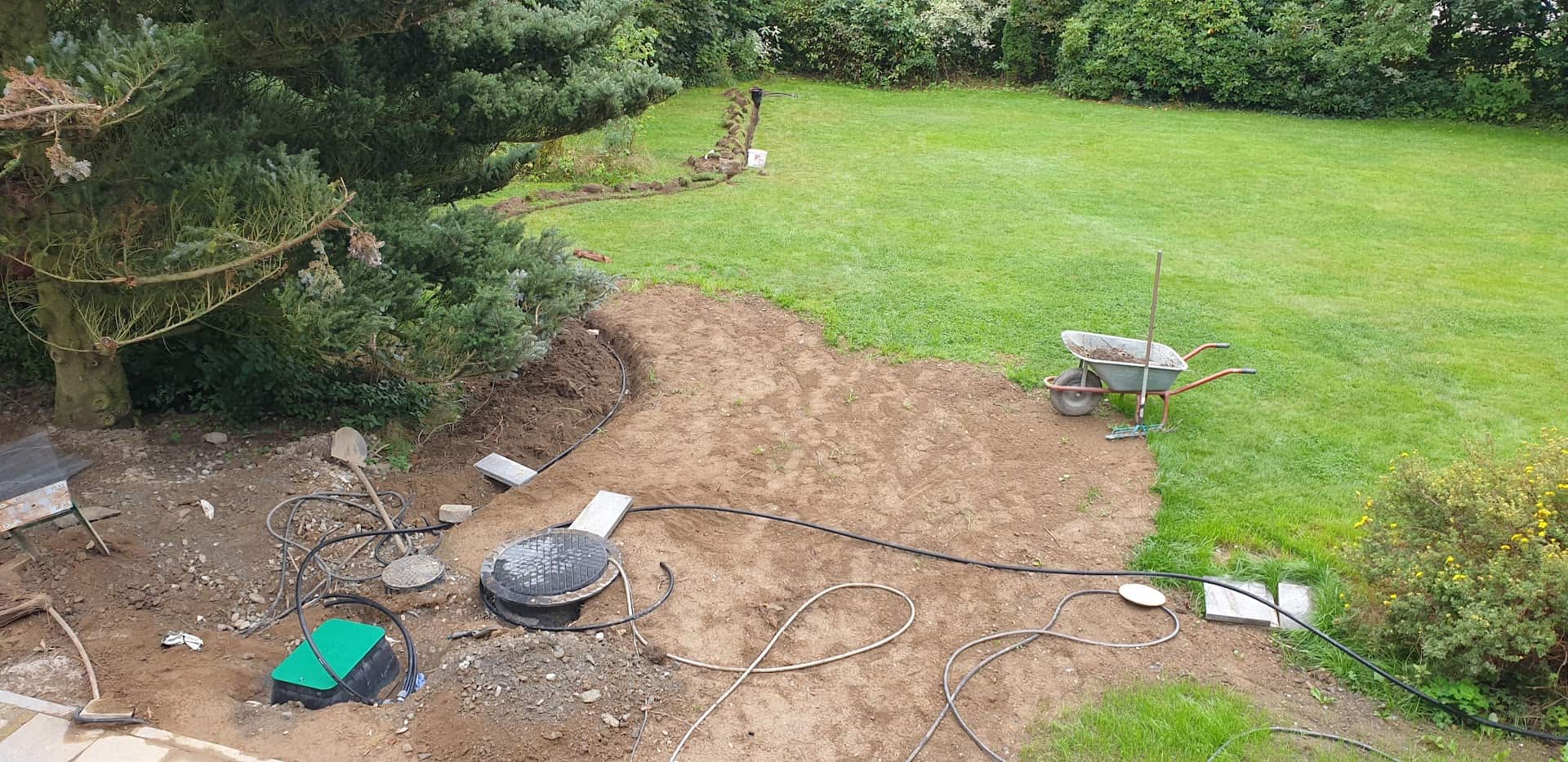
With our cistern, which we got last year as a buffer and with the new pipes for rainwater drainage, there is plenty of free water from the roof. At least when it rains again one day.

We have therefore laid pipes for automatic irrigation on the property, using the Gardena irrigation system, as these components were cheaper last year than the alternatives from Hunter or Rainbird.

We control 5 individual circuits via 5 valves:

  • East lawn irrigation
  • West lawn irrigation
  • Raised bed / flower beds
  • Front garden
  • Water outlet in the driveway

The material used was

Gardena Versenkregner

The electronics of the Waterking

The typical irrigation valves are controlled with 24 volts alternating current. According to the data sheet, the switch-on current is 370 mA, the holding current 210 mA. According to my measurements, the actual values were somewhat lower.

As all the valves are never in operation at the same time because otherwise the water pressure would drop too much (even with the 4 bar submersible pressure pump), a 24 volt AC power supply with 1 ampere is sufficient. I still had this from an old outdoor light chain. You can also find suitable power supply units on Ebay.

If the valves were operated with DC voltage, the cores of the electromagnets could become permanently magnetised and the valves would “stick”. In the worst case, the core would become saturated, which could mean a higher current flow and thus the destruction of the coils.

Therefore, MOSFETs cannot be used for simple control. The simplest solution would be relays, but I didn’t want to rely on that. Firstly, the contacts can corrode and the simple Chinese relays, which are available ready-made as 4 or 8-pin boards, are not necessarily suitable for switching low voltage. This sounds paradoxical, but most alloys used for relay contacts (AgCdO for these relays) require a short arc, which only occurs at higher voltages and currents (the so-called frit current). This burns away oxides, which ensures a permanently good contact. As there is also high humidity in the shed, relays were ruled out for me.

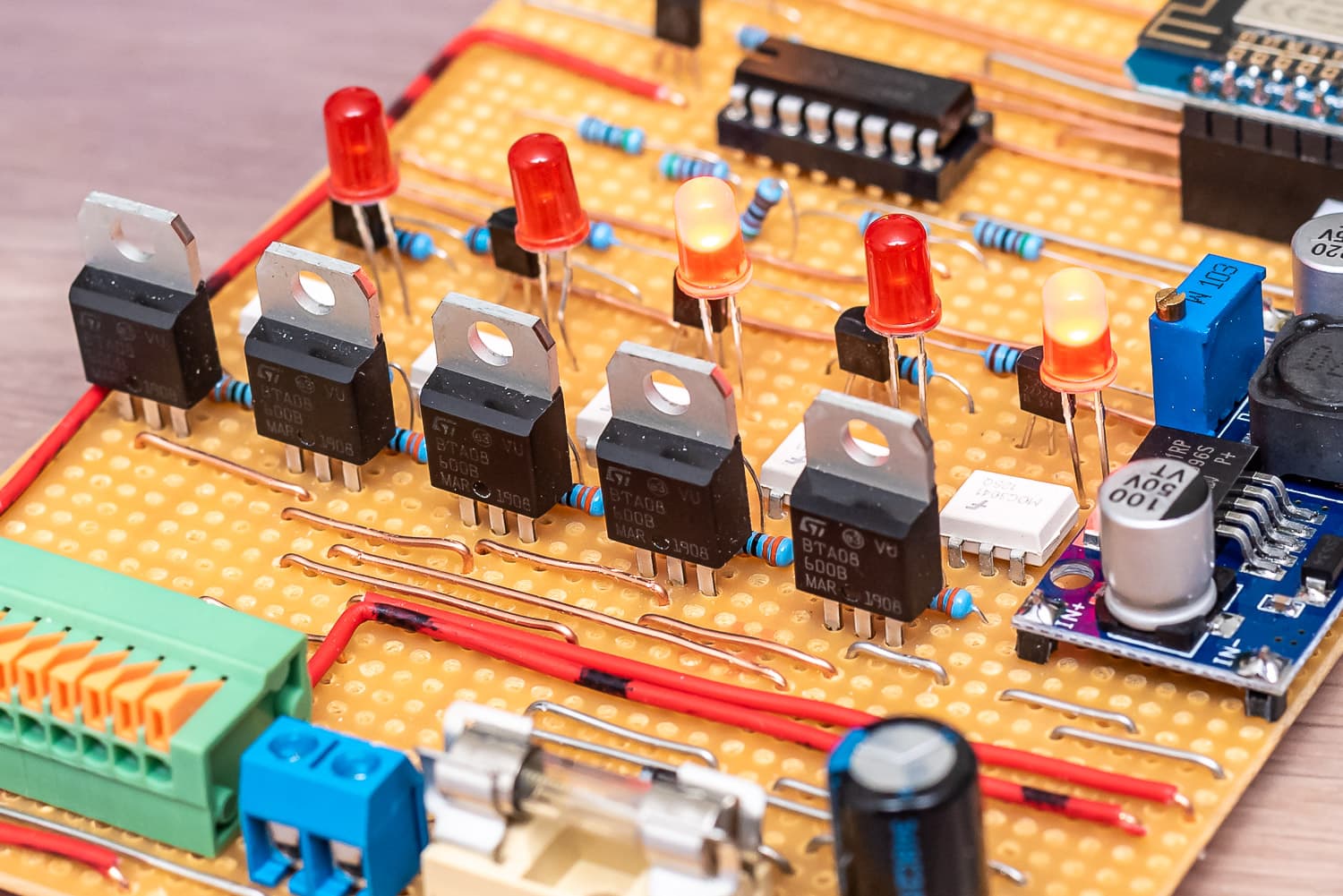
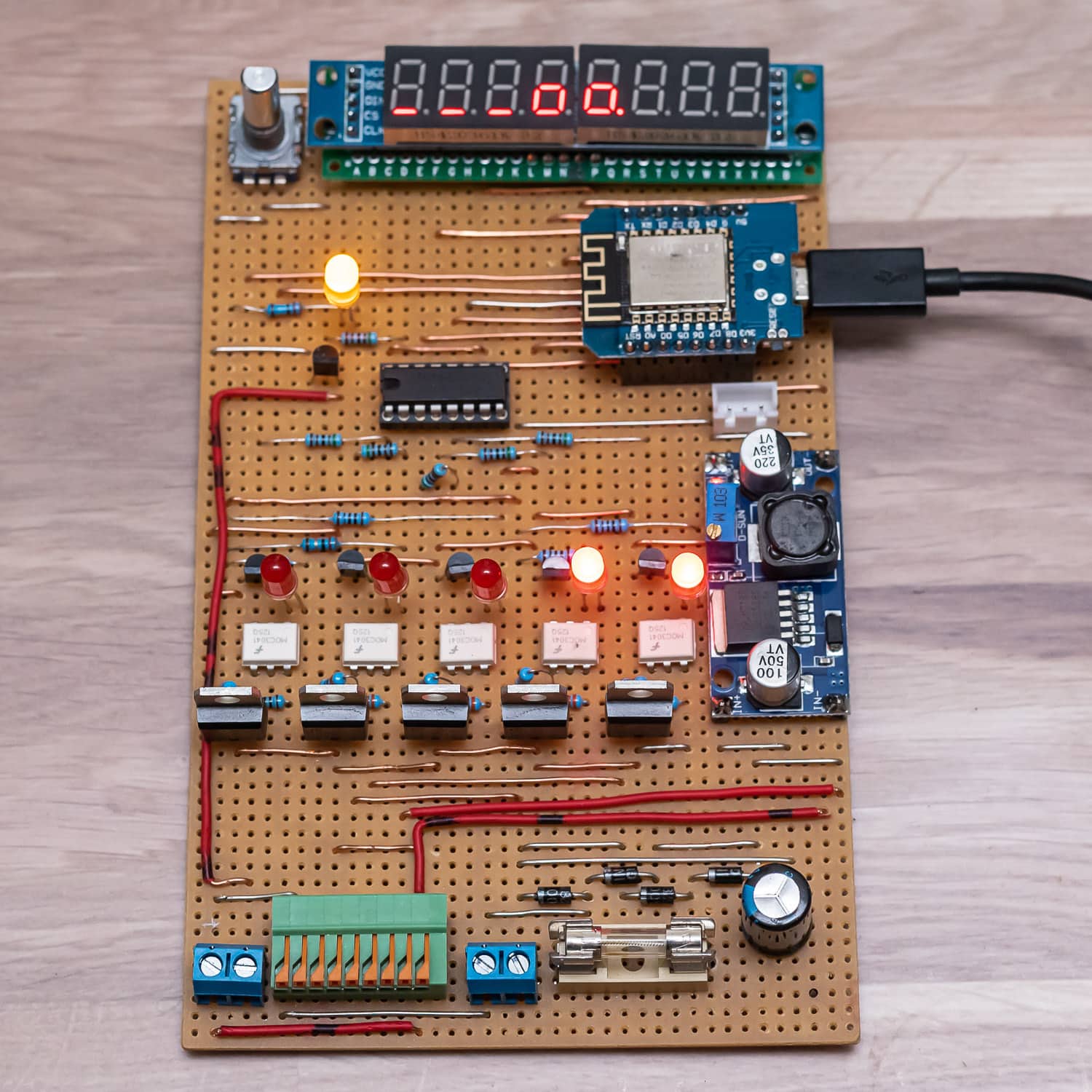
The triacs of the 5 channels with the white optocouplers

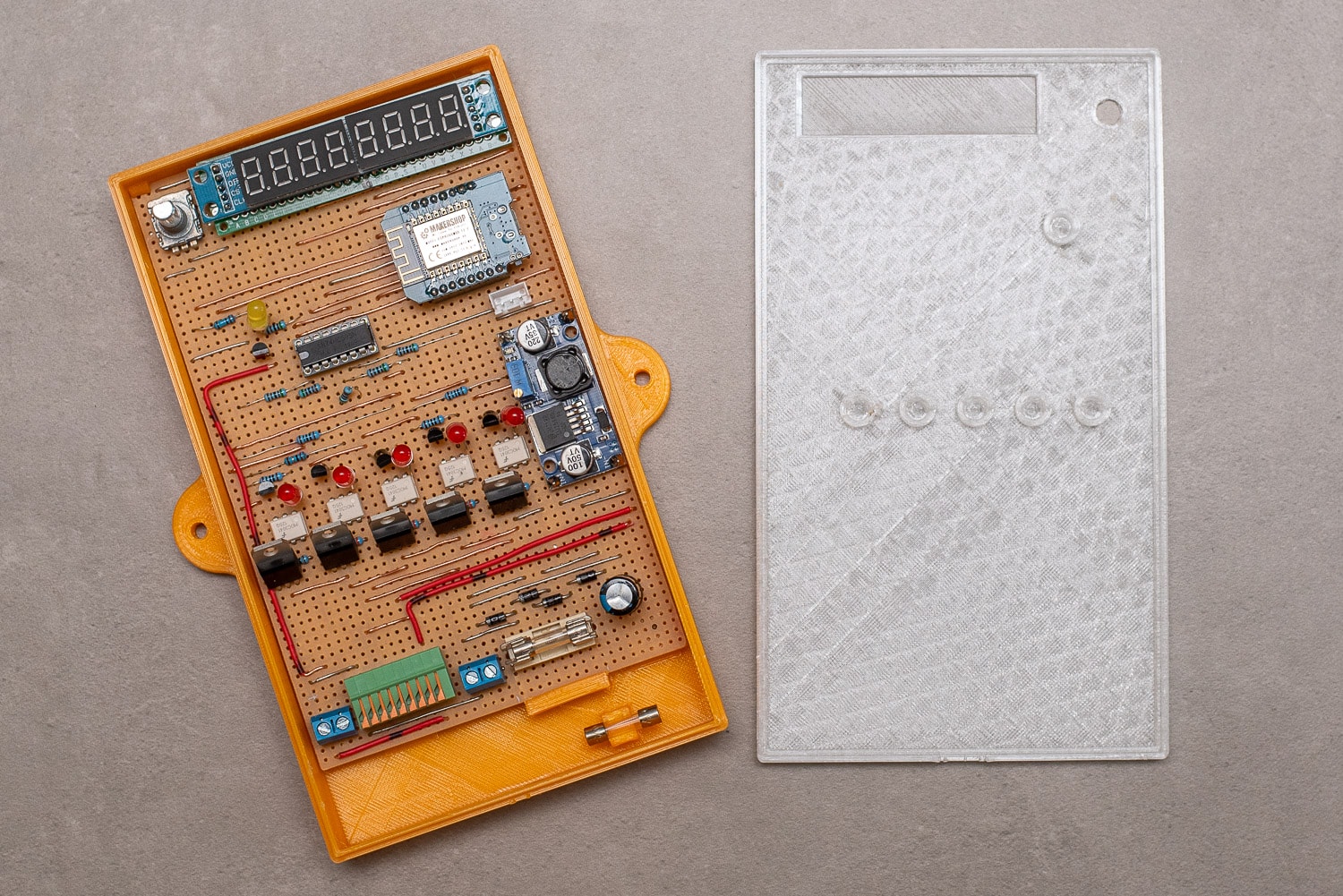
For my DIY controller, which I christened Waterking, I opted for BTA08-600B triacs, which are controlled via a MOC3041 optocoupler that also contains a zero-crossing triac driver. If you add 5 resistors, an NPN transistor and an LED, one channel costs less than one euro and you will never have contact problems. The LEDs indicate on the hardware side whether a valve is open and the optocoupler is activated.

As you already have the 24 volts, you can also use them to supply the ESP8266 and the display. Rectified, you get 35 V DC, which I convert very efficiently to 5 V using an LM2596S step-down converter.

As is often the case with my projects, a Wemos D1 Mini Pro is used because I bought a large quantity at a good price a long time ago. The Wemos is also utilised down to the (almost) last GPIO. I need 6 outputs to control 5 valves and our submersible pressure pump. Now you could use 6 GPIOs or use a shift register of type SN74HC595. This allows you to switch 8 outputs with 3 control pins. If you need more, you can cascade up to 4 SN74HC595 under ESPHome, for which you then need one more pin, but this gives you 32 outputs.

The pump is switched via a solid state relay (SSR).

TL - 136 Flüssigkeitsstandsender Wasser Ölstandsensor Detektor 24VDC 420mA Signalausgang(0-2m), SenderTL – 136 Flüssigkeitsstandsender Wasser Ölstandsensor Detektor 24VDC 420mA Signalausgang(0-2m), Sender

Originally, my controller was supposed to remain “dumb”, i.e. only make the triac outputs switchable via Home Assistant. But if you already have a microcontroller, you might as well add a few extra functions. For example, the valves switch off after a configurable time (10 minutes). If no valve is active, the pump is also deactivated. If the WLAN connection is lost during irrigation or Home Assistant has a bug, the valves and pump switch off automatically and autonomously. I built everything on a strip grid board. I’m “Team Strip Grid” – I just don’t like the messing around with solder on the perfboards.

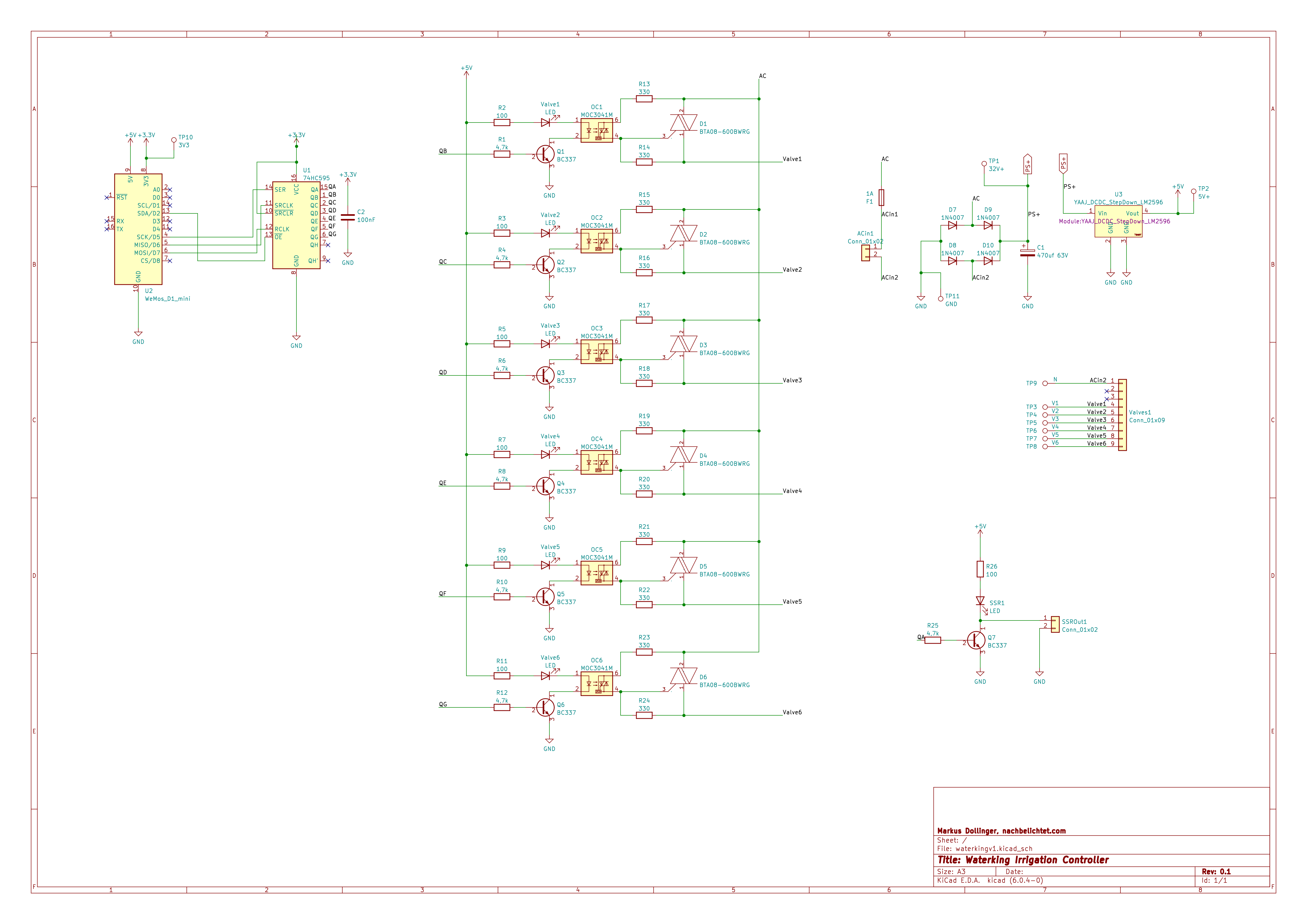
Please understand that I don’t have a plan for the layout of the board. I do things like this freely and without much pre-planning directly from the circuit diagram. Just test the position of the parts and off you go. Maybe I’ll add a circuit board layout with KiCAD when I get the chance – maybe one of you would like to do that too? The circuit diagram in KiCAD is available.

Circuit diagram without display and encoder

Using a rotary encoder and the LED display, I can not only display the status of the valves (in addition to the LEDs on the optocoupler), but also switch them on and off directly on the controller. Other menu levels show the water level of the cistern in centimetres and litres, the strength of the WLAN signal, today’s water consumption and the time. I have described how to build the water level meter with a TL-136 sensor here: https://nachbelichtet.com/wasserstand-in-zisternen-mit-homeassistant-esphome-und-tl-136-drucksensor-messen/

Water level in the cistern

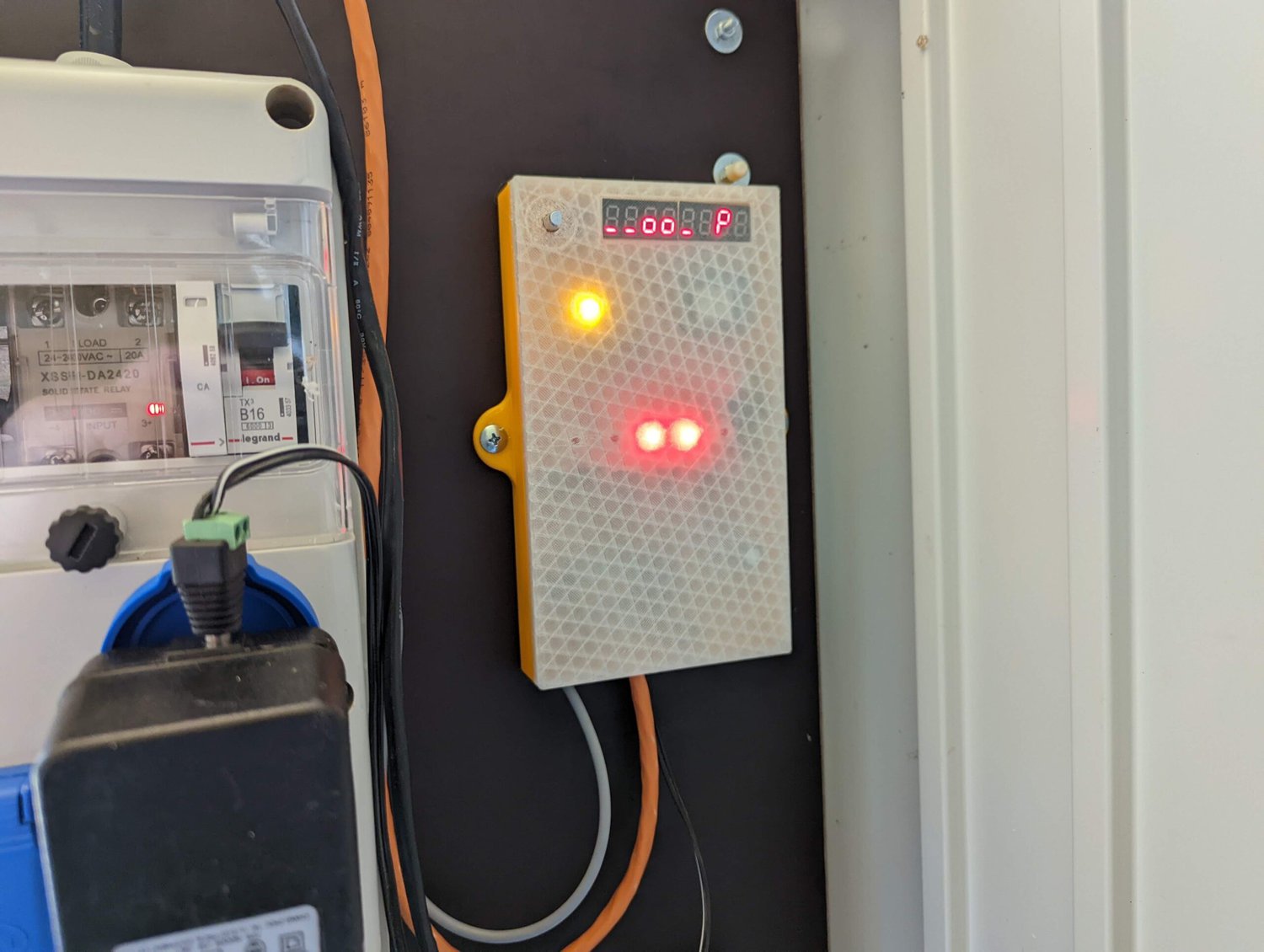
You can change levels by simply turning the encoder. Pressing the button takes you to the setup menu for the valves. A dash indicates an inactive valve, a box an active one. The decimal point indicates which valve has just been selected and a long press on the button switches it on or off. A short press takes you back to the main menu.

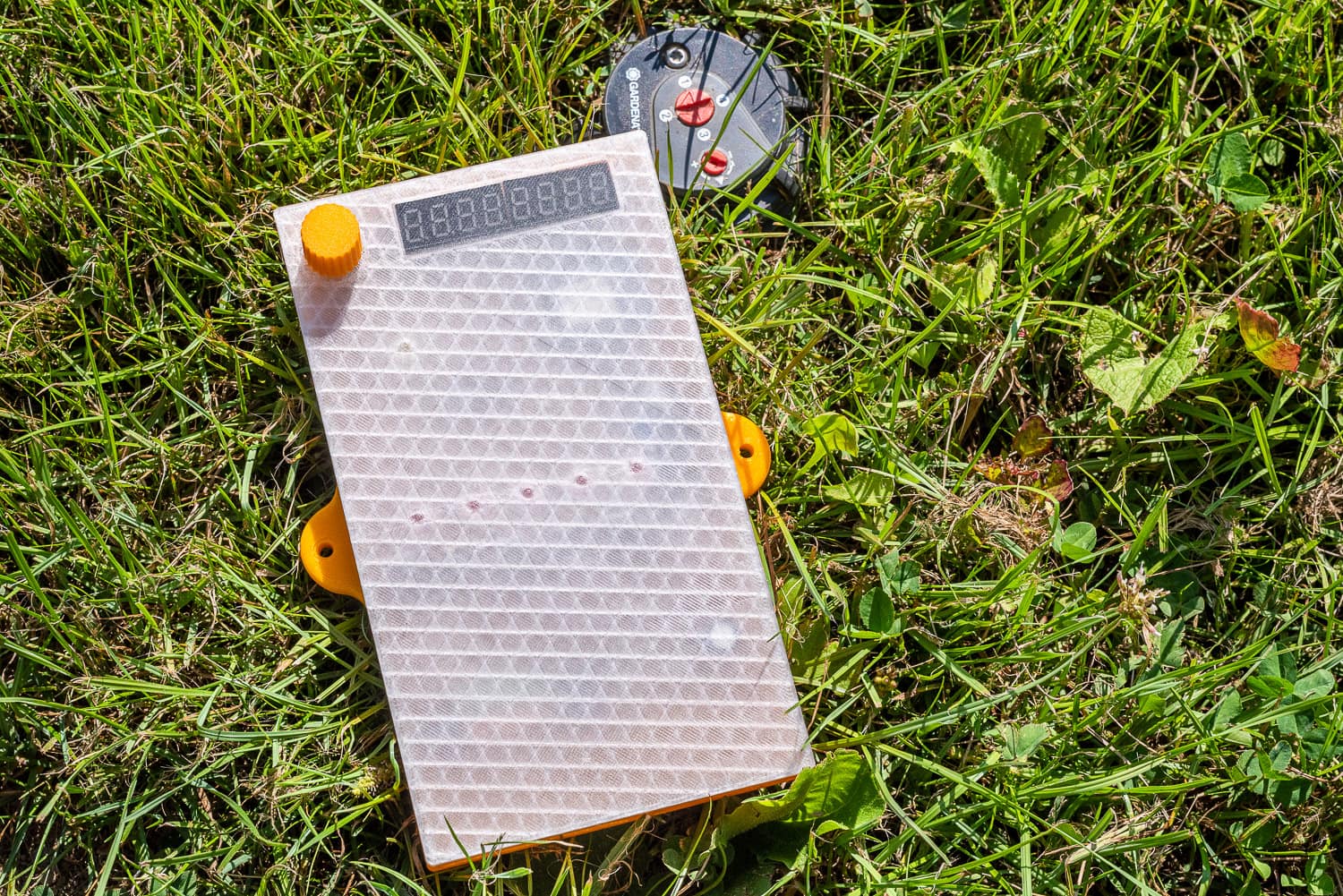
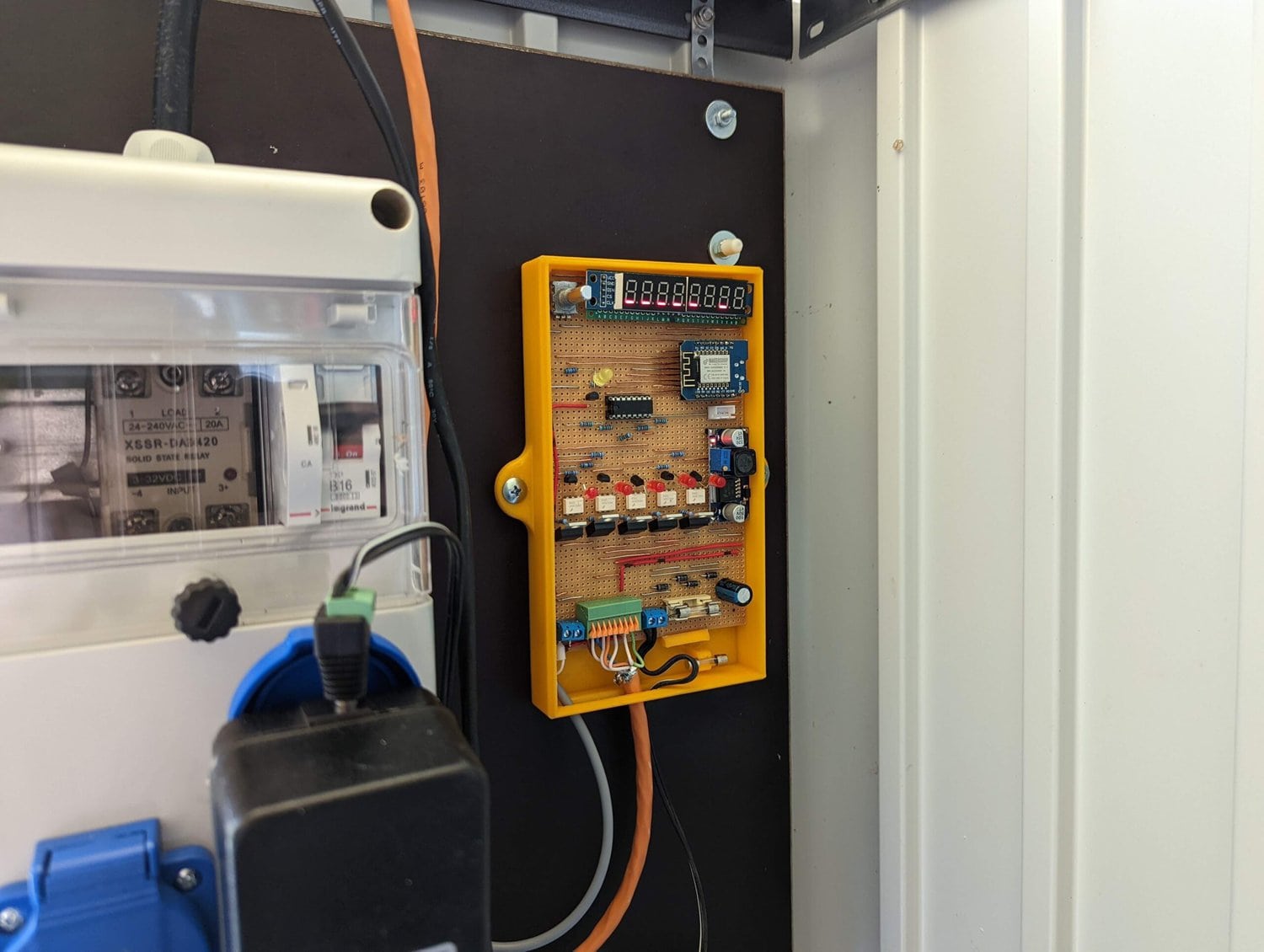
The Waterking in use

I was once tempted to create a convenient menu with a simple 8-digit LED display. It doesn’t always have to be an OLED or LC display and the LED display is very robust, which is not unimportant at -20 to 50 °C in the shed.

The various menus and settings in the display

By checking the water level in the cistern, I can deactivate the pump if the water level drops below 12 cm. A long press on the encoder button switches off all valves and the pump immediately.

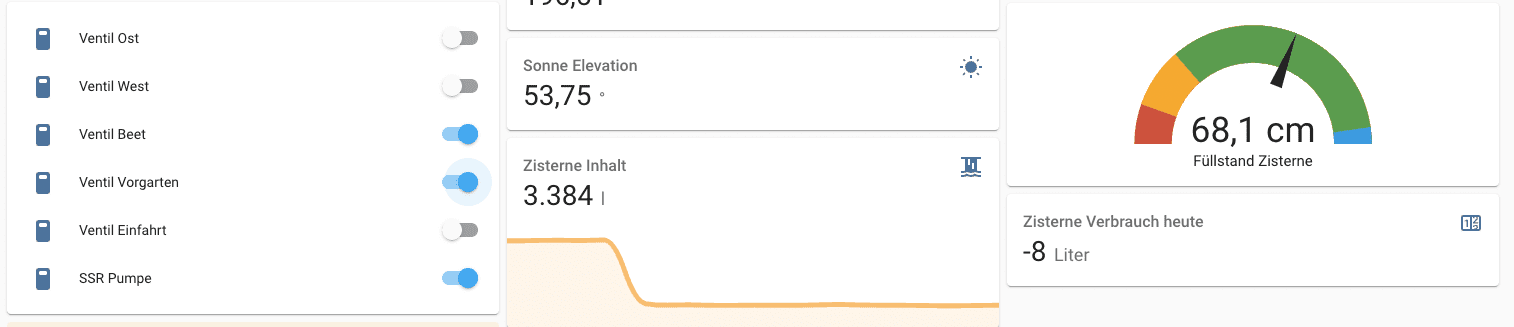
Valve control in Home Assistant with cistern water level

Interlocking the outputs prevents certain valves from being active at the same time. This not only prevents a drop in pressure, but also prevents the power pack from being overloaded. A maximum of 3 valves(Gardena Micro Trip dripper raised bed, front garden and water withdrawal) can be active and only one of the two circuits for the lawn area. The controller also provides this safety function directly – regardless of what else I would configure in Home Assistant.

3D-printed housing for the Waterking

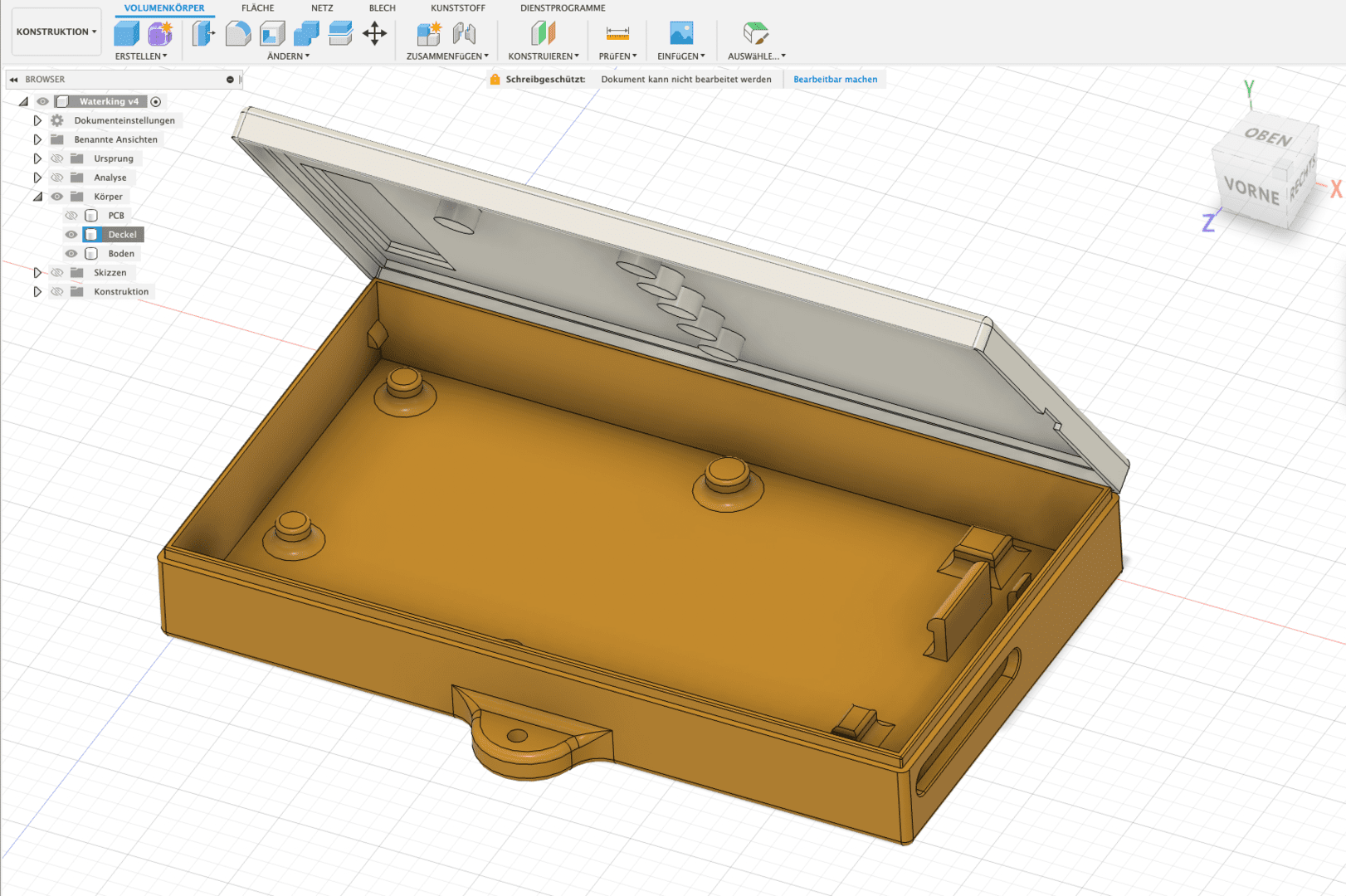
To ensure that everything is properly packaged and looks good, I printed a housing from PETG and PLA. The transparent PETG allows the LEDs and the display to shine through.

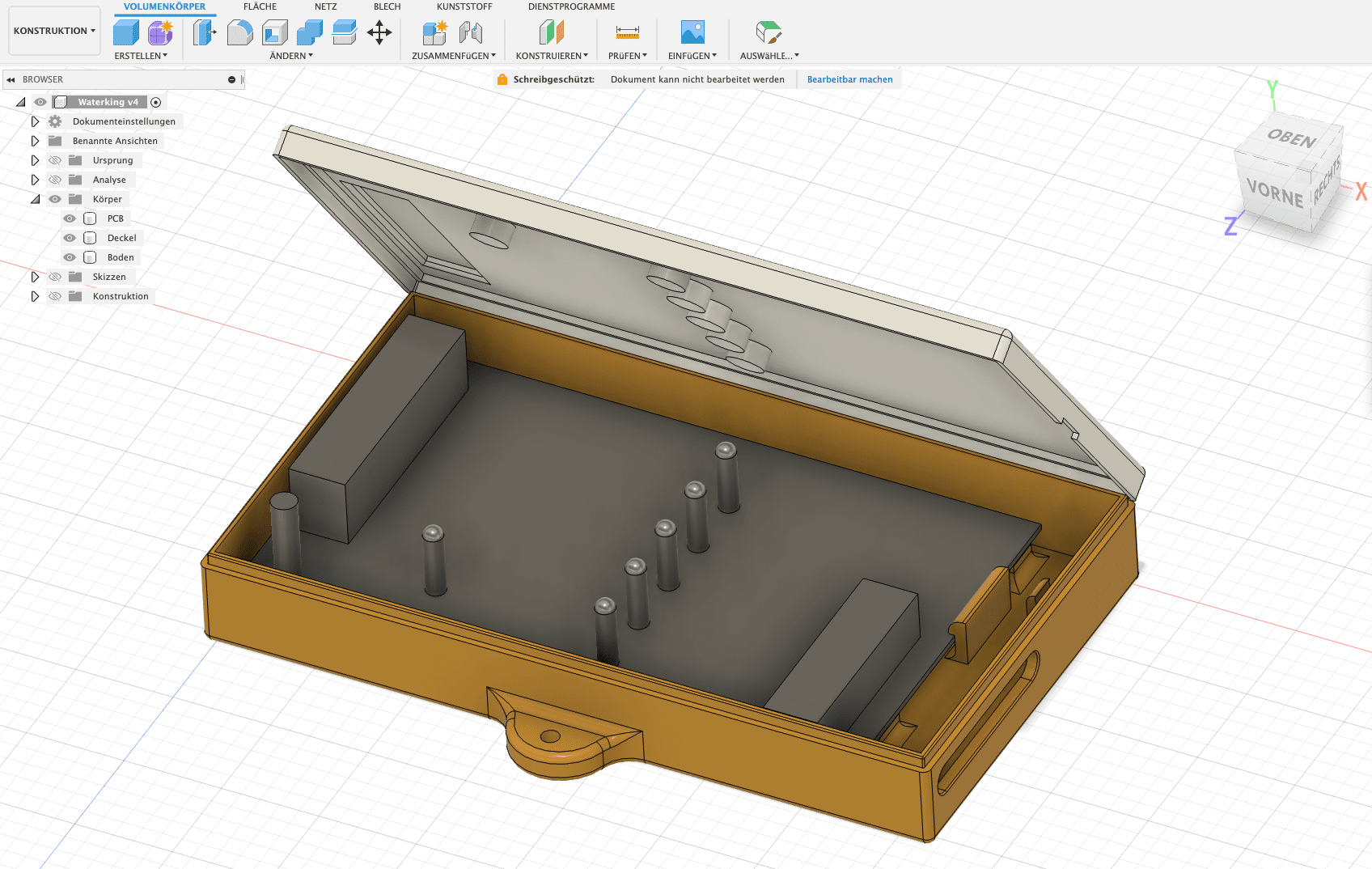
Housing with abstracted model of the circuit board

For the display cut-out, I chose the layer thickness during construction so that no infill is printed. This makes it look like a transparent film.

The entire housing can be closed without screws and the circuit board is also only held in place by snap fasteners. With a handmade circuit board, the construction of a housing with a lid is not entirely trivial, but it worked on the first attempt and print.

Construction in Fusion 360

A holder for a spare fuse is also included as a gag. Access to the connection terminals is from below. As always, I used Autodesk Fusion 360 for the design. My Creality Ender 3 did the printing in about 10 hours.

Access to the connection terminals

If you don’t want to go to the trouble of controlling the valves, you can also use an SSR board instead of the triacs, which you can get for less than €20. Here you only have to control the channels with the ESP. The code below can also be used for this.

SSR module with 8 channels.

I have annotated the YAML configuration in ESPHome accordingly:

  1
  2
  3
  4
  5
  6
  7
  8
  9
 10
 11
 12
 13
 14
 15
 16
 17
 18
 19
 20
 21
 22
 23
 24
 25
 26
 27
 28
 29
 30
 31
 32
 33
 34
 35
 36
 37
 38
 39
 40
 41
 42
 43
 44
 45
 46
 47
 48
 49
 50
 51
 52
 53
 54
 55
 56
 57
 58
 59
 60
 61
 62
 63
 64
 65
 66
 67
 68
 69
 70
 71
 72
 73
 74
 75
 76
 77
 78
 79
 80
 81
 82
 83
 84
 85
 86
 87
 88
 89
 90
 91
 92
 93
 94
 95
 96
 97
 98
 99
100
101
102
103
104
105
106
107
108
109
110
111
112
113
114
115
116
117
118
119
120
121
122
123
124
125
126
127
128
129
130
131
132
133
134
135
136
137
138
139
140
141
142
143
144
145
146
147
148
149
150
151
152
153
154
155
156
157
158
159
160
161
162
163
164
165
166
167
168
169
170
171
172
173
174
175
176
177
178
179
180
181
182
183
184
185
186
187
188
189
190
191
192
193
194
195
196
197
198
199
200
201
202
203
204
205
206
207
208
209
210
211
212
213
214
215
216
217
218
219
220
221
222
223
224
225
226
227
228
229
230
231
232
233
234
235
236
237
238
239
240
241
242
243
244
245
246
247
248
249
250
251
252
253
254
255
256
257
258
259
260
261
262
263
264
265
266
267
268
269
270
271
272
273
274
275
276
277
278
279
280
281
282
283
284
285
286
287
288
289
290
291
292
293
294
295
296
297
298
299
300
301
302
303
304
305
306
307
308
309
310
311
312
313
314
315
316
317
318
319
320
321
322
323
324
325
326
327
328
329
330
331
332
333
334
335
336
337
338
339
340
341
342
343
344
345
346
347
348
349
350
351
352
353
354
355
356
357
358
359
360
361
362
363
364
365
366
367
368
369
370
371
372
373
374
375
376
377
378
379
380
381
382
383
384
385
386
387
388
389
390
391
392
393
394
395
396
397
398
399
400
401
402
403
404
405
406
407
408
409
410
411
412
413
414
415
416
417
418
419
420
421
422
423
424
425
426
427
428
429
430
431
432
433
434
435
436
437
438
439
440
441
442
443
444
445
446
447
448
449
450
451
452
453
454
455
456
457
458
459
460
461
462
463
464
465
466
467
468
469
470
471
472
473
474
475
476
477
478
479
480
481
482
483
484
485
486
487
488
489
490
491
492
493
494
495
496
497
498
499
500
501
502
503
504
505
506
507
508
509
510
511
512
513
514
515
516
517
518
519
520
521
522
523
524
525
526
527
528
529
530
531
532
533
534
535
536
537
538
539
540
541
542
543
544
545
546
547
548
549
550
551
552
553
554
555
556
557
558
559
560
561
562
563
564
565
esphome:
  name: waterking
  platform: ESP8266
  board: d1_mini
  # Switch off all outputs at startup for safety reasons
  on_boot: 
    then:
      - switch.turn_off: v1
      - switch.turn_off: v2
      - switch.turn_off: v3
      - switch.turn_off: v4
      - switch.turn_off: v5
      - switch.turn_off: pump
      - sensor.rotary_encoder.set_value:
          id: enc
          value: 0

# Switch off serial logger on RX/TX to be able to use pins for other tasks
logger: 
  baud_rate: 0

# Activate Home Assistant API
api:

ota:
  password: !secret otapass"

wifi:
  ssid: !secret wifi_ssid
  password: !secret wifi_password
  use_address: waterking.local

  # Fallback hotspot
  ap:
    ssid: "Bewaesserung Fallback Hotspot"
    password: !secret hotspot

captive_portal:

# Get time from HA
time:
  - platform: homeassistant
    id: homeassistant_time

# Set global variables
globals: 
  - id: setpage #Setting mode
    type: bool
    restore_value: no
    initial_value: 'false'

  - id: maxtime #maximum valve runtime as protection
    type: int
    restore_value: yes
    initial_value: '600000' # in ms = 10 min

# Set up shift register
sn74hc595:
  - id: 'sn74hc595_hub'
    data_pin: D5
    clock_pin: D6
    latch_pin: D7
    oe_pin: D2
    sr_count: 1

# SPI for display
spi:
  clk_pin: D0
  mosi_pin: D1

# Define valves

switch:
  - platform: gpio
    name: "Valve East"
    id: v1
    pin:
      sn74hc595: sn74hc595_hub
      number: 1
      inverted: false
    interlock: [v2,v4,v5] # Do not switch on certain valves at the same time -> pressure loss
    on_turn_on:
      - switch.turn_on: pump
      - delay: !lambda "return id(maxtime);"
      - switch.turn_off: v1

  - platform: gpio
    name: "Valve West"
    id: v2
    pin:
      sn74hc595: sn74hc595_hub
      number: 2
      inverted: false
    interlock: [v1,v4,v5]
    on_turn_on:
      - switch.turn_on: pump
      - delay: !lambda "return id(maxtime);"
      - switch.turn_off: v2

  - platform: gpio
    name: "Ventil Beet"
    id: v3
    pin:
      sn74hc595: sn74hc595_hub
      number: 3
      inverted: false
    interlock: [v2]
    on_turn_on:
      - switch.turn_on: pump
      - delay: !lambda "return id(maxtime);"
      - switch.turn_off: v3

  - platform: gpio
    name: "Front garden valve"
    id: v4
    pin:
      sn74hc595: sn74hc595_hub
      number: 4
      inverted: false
    interlock: [v1,v2]
    on_turn_on:
      - switch.turn_on: pump
      - delay: !lambda "return id(maxtime);"
      - switch.turn_off: v4

  - platform: gpio
    name: "Valve inlet"
    id: v5
    pin:
      sn74hc595: sn74hc595_hub
      number: 5
      inverted: false
    interlock: [v2,v5]
    on_turn_on:
      - switch.turn_on: pump
      - delay: 1h #Valve 5 may be on for max. 1 hour -> water withdrawal
      - switch.turn_off: v5

# Solid state relay output for pump control
  - platform: gpio
    name: "SSR pump"
    internal: true # Do not display pump in HA
    id: pump
    pin:
      sn74hc595: sn74hc595_hub
      number: 0
      inverted: false

# Set up display
display:
  - platform: max7219
    cs_pin: D3
    num_chips: 1
    update_interval: 500ms
    lambda: |-
      // Display page 5 time
      if ((id(enc).state == 5) && (id(setpage) == false)) {
        it.print(" ");
        it.strftime("%H.%M.%S", id(homeassistant_time).now());
      }

      // Page 4 Wifi Level
      if ((id(enc).state == 4) && (id(setpage) == false)) {
        it.print(" ");
        it.printf("Wi %.0fdB", id(wlan_signal).state);
      }

      // Page 1 Water level Height
      if ((id(enc).state == 1) && (id(setpage) == false)) {
        it.print(" ");
        it.printf("FH %.1fcn", id(cistern_cm).state);
          }

      // Page 2 Water level litres
      if ((id(enc).state == 2) && (id(setpage) == false)) {
        it.print(" ");
        it.printf("FS %.0fL", id(cistern_litre).state);
          }

      // Page 3 Water consumption today
      if ((id(enc).state == 3) && (id(setpage) == false)) {
        it.print(" ");
        it.printf(1,"= %.0f L", id(cistern_delta_today).state);

          } 

      // Display page 0 status valves    
      if ((id(enc).state == 0) && (id(setpage) == false)) {
        it.print(" ");
          if ((id(v1).state)) {
            it.print("o");
            } else {
            it.print("_");
              }

          if ((id(v2).state)) {
            it.print(1, "o");
            } else {
            it.print(1,"_");
              }

          if ((id(v3).state)) {
            it.print(2, "o");
            } else {
            it.print(2,"_");
              }

          if ((id(v4).state)) {
            it.print(3, "o");
            } else {
            it.print(3,"_");
              }

          if ((id(v5).state)) {
            it.print(4, "o");
            } else {
            it.print(4,"_");
              }
          if ((id(pump).state)) {
            it.print(6, "P");
            } else {
            it.print(6,"_");
              }
          } 

      // First page setup page
      if (id(setpage) == true && id(enc).state == 0) {
        it.print(" S");
        if ((id(v1).state)) {
          it.print("o");
          } else {
          it.print("_");
            }

        if ((id(v2).state)) {
          it.print(1, "o");
          } else {
          it.print(1,"_");
            }

        if ((id(v3).state)) {
          it.print(2, "o");
          } else {
          it.print(2,"_");
            }

        if ((id(v4).state)) {
          it.print(3, "o");
          } else {
          it.print(3,"_");
            }

        if ((id(v5).state)) {
          it.print(4, "o");
          } else {
          it.print(4,"_");
            }
        if ((id(pump).state)) {
          it.print(6, "P");
          } else {
          it.print(6,"_");
            }

      }


      // Set valve 1 

      if (id(setpage) == true && id(enc).state == 1) {


        if ((id(v1).state)) {
          it.print("o.");
          } else {
          it.print("_.");
            }

        if ((id(v2).state)) {
          it.print(1, "o");
          } else {
          it.print(1,"_");
            }

        if ((id(v3).state)) {
          it.print(2, "o");
          } else {
          it.print(2,"_");
            }

        if ((id(v4).state)) {
          it.print(3, "o");
          } else {
          it.print(3,"_");
            }

        if ((id(v5).state)) {
          it.print(4, "o");
          } else {
          it.print(4,"_");
            }

          } // End V1  

        // Set valve 2 

        if (id(setpage) == true && id(enc).state == 2) {


          if ((id(v1).state)) {
            it.print("o");
            } else {
            it.print("_");
              }

          if ((id(v2).state)) {
            it.print(1, "o.");
            } else {
            it.print(1,"_.");
              }

          if ((id(v3).state)) {
            it.print(2, "o");
            } else {
            it.print(2,"_");
              }

          if ((id(v4).state)) {
            it.print(3, "o");
            } else {
            it.print(3,"_");
              }

          if ((id(v5).state)) {
            it.print(4, "o");
            } else {
            it.print(4,"_");
              }

          }

          if (id(setpage) == true && id(enc).state == 3) {


            if ((id(v1).state)) {
              it.print("o");
              } else {
              it.print("_");
                }

            if ((id(v2).state)) {
              it.print(1, "o");
              } else {
              it.print(1,"_");
                }

            if ((id(v3).state)) {
              it.print(2, "o.");
              } else {
              it.print(2,"_.");
                }

            if ((id(v4).state)) {
              it.print(3, "o");
              } else {
              it.print(3,"_");
                }

            if ((id(v5).state)) {
              it.print(4, "o");
              } else {
              it.print(4,"_");
                }

            }

            if (id(setpage) == true && id(enc).state == 4) {


              if ((id(v1).state)) {
                it.print("o");
                } else {
                it.print("_");
                  }

              if ((id(v2).state)) {
                it.print(1, "o");
                } else {
                it.print(1,"_");
                  }

              if ((id(v3).state)) {
                it.print(2, "o");
                } else {
                it.print(2,"_");
                  }

              if ((id(v4).state)) {
                it.print(3, "o.");
                } else {
                it.print(3,"_.");
                  }

              if ((id(v5).state)) {
                it.print(4, "o");
                } else {
                it.print(4,"_");
                  }

              }
              if (id(setpage) == true && id(enc).state == 5) {


                if ((id(v1).state)) {
                  it.print("o");
                  } else {
                  it.print("_");
                    }

                if ((id(v2).state)) {
                  it.print(1, "o");
                  } else {
                  it.print(1,"_");
                    }

                if ((id(v3).state)) {
                  it.print(2, "o");
                  } else {
                  it.print(2,"_");
                    }

                if ((id(v4).state)) {
                  it.print(3, "o");
                  } else {
                  it.print(3,"_");
                    }

                if ((id(v5).state)) {
                  it.print(4, "o.");
                  } else {
                  it.print(4,"_.");
                    }

                } 

sensor:

  - platform: rotary_encoder # Set up rotary encoder
    name: "Rotary Encoder"
    id: enc
    publish_initial_value: true
    pin_a: 
      number: TX
      inverted: true
      mode:
        input: true
        pullup: true
    pin_b: 
      number: RX
      inverted: true
      mode:
        input: true
        pullup: true
    max_value: 5
    min_value: 0

# Get fill level in litres from HA
  - platform: homeassistant
    id: cistern_litre
    entity_id: sensor.cistern_litre

# Get consumption today from HA
  - platform: homeassistant
    id: cistern_delta_today
    entity_id: sensor.cistern_delta_today

# Get fill level in cm from HA  
  - platform: homeassistant
    id: cistern_cm
    entity_id: sensor.wasserstandraw # Emergency shutdown water level < 12 cm -> pump protection
    on_value_range:
      - below: 12
        then:
          - switch.turn_off: v1
          - switch.turn_off: v2
          - switch.turn_off: v3
          - switch.turn_off: v4
          - switch.turn_off: v5
          - switch.turn_off: pump

# Get WLAN signal strength ... because you can
  - platform: wifi_signal
    name: "ESP Wifi Signal"
    update_interval: 30s
    id: wlan_signal      

binary_sensor:

  - platform: template
    name: "Any Valve On" # If all valves are off, switch off the pump
    internal: true
    lambda: 'return id(v1).state or id(v2).state or id(v3).state or id(v4).state or id(v5).state ;'
    on_release:
      then:
        - switch.turn_off: pump

  - platform: gpio # Set up buttons on the encoder
    id: encswitch
    pin: 
      number: GPIO2
      mode: INPUT_PULLUP
      inverted: True 
    on_click:
    - min_length: 50ms # Short actuation to enter the valve setup
      max_length: 250ms
      then: 
        - lambda: |-
            if(id(setpage)) {
              id(setpage) = false; 
            } else {
              id(setpage) = true; 
            } 

    - min_length: 600ms # long actuation to switch selected valve on/off
      max_length: 1500ms
      then:
        - if:
            condition:
              lambda: 'return (id(setpage) == true && id(enc).state == 1);'
            then:
              switch.toggle: v1

        - if:
            condition:
              lambda: 'return (id(setpage) == true && id(enc).state == 2);'
            then:
              switch.toggle: v2  

        - if:
            condition:
              lambda: 'return (id(setpage) == true && id(enc).state == 3);'
            then:
              switch.toggle: v3  

        - if:
            condition:
              lambda: 'return (id(setpage) == true && id(enc).state == 4);'
            then:
              switch.toggle: v4  

        - if:
            condition:
              lambda: 'return (id(setpage) == true && id(enc).state == 5);'
            then:
              switch.toggle: v5 


    - min_length: 3000ms # very long actuation to switch off all valves and the pump
      max_length: 60000ms
      then:
        - switch.turn_off: v1
        - switch.turn_off: v2
        - switch.turn_off: v3
        - switch.turn_off: v4
        - switch.turn_off: v5
        - switch.turn_off: pump

Irrigation control with Home Assistant

Home Assistant will take over the actual irrigation control. As various sensors such as the rain sensor of the LCN-WIH weather station, rain quantity sensor and the weather forecast are already available as entities in HA, these can be used for optimal and economical irrigation.

Installation in the shed

The level measurement of the cistern is also an excellent sensor when it comes to rainfall, as it receives the rainfall from 75 square metres of roof area. If the water level in the cistern is low, you can also shorten the watering times, etc.

Bodenfeuchtesensor

New project: The DIY soil moisture sensor

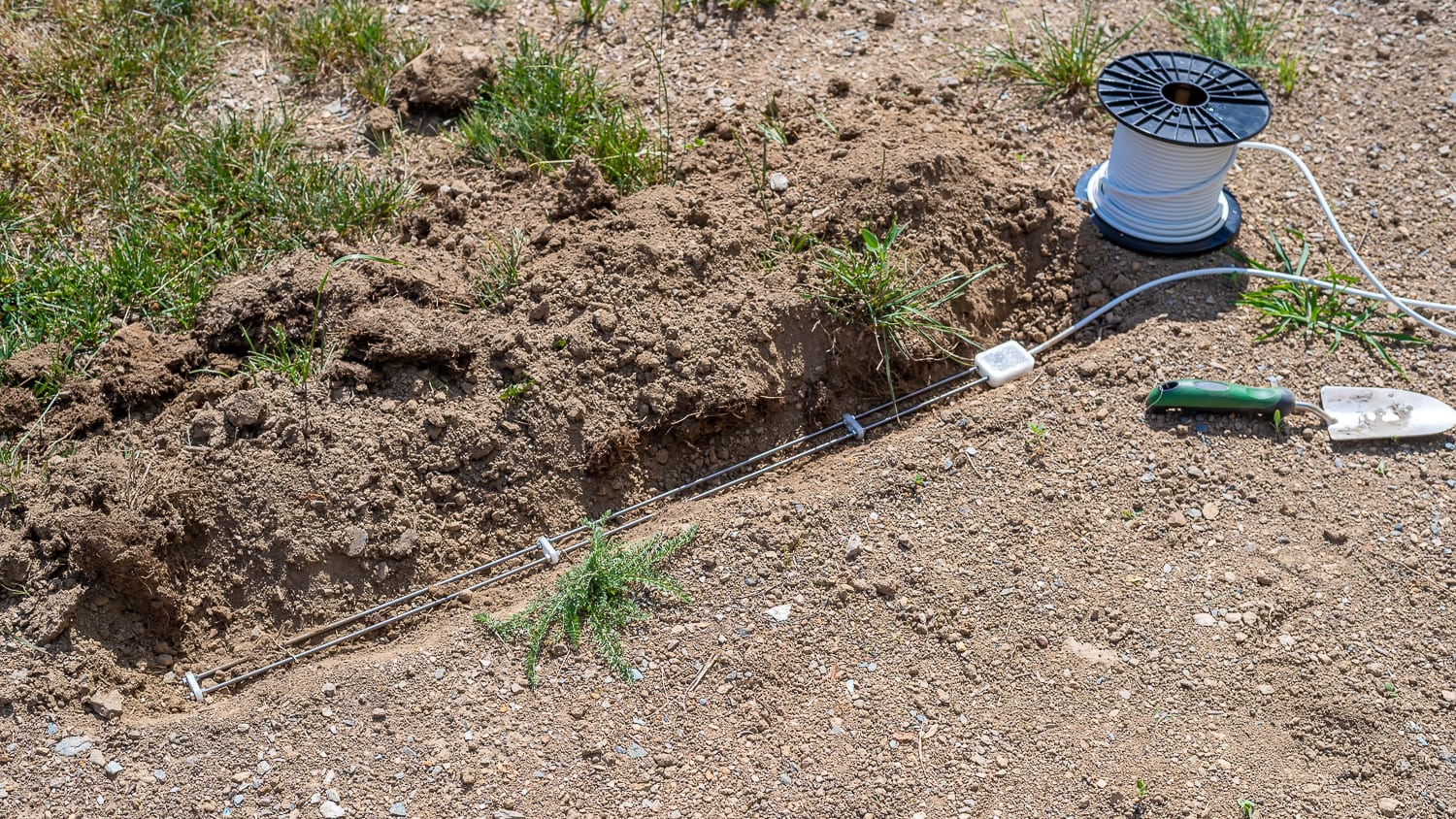
The most important values for irrigation come from a soil moisture sensor. Although capacitive sensors are relatively robust, they only measure the soil moisture in a narrow range of a few square centimetres. I have therefore built a resistive sensor from two 1 metre long stainless steel threaded rods, which are buried 20 mm apart at a depth of 10 cm.

The DIY soil moisture sensor

Stainless steel is corrosion-resistant and robust. The two M5 rods cost 3 euros in the special price DIY store. With this sensor, you can measure a representative area and not just selectively. As the measuring current and the resulting electrolysis could cause salts and minerals to be deposited on the electrodes over time, the measurement is only activated very briefly and at longer intervals. There will be a separate article on this.

Which hardware should I choose for Home Assistant?

In January 2021, I already gave a hardware recommendation for Home Assistant. A lot has changed since then: Home Assistant has become more powerful and the chip crisis has meant that the Raspberry Pi is no longer as affordable as it was back then. In this article, I’ll tell you about possible platforms for Home Assistant and their pros and cons.

UPDATE 12.09.2024: Here is another article on the topic, which also discusses the advantages of virtualisation with Proxmox Selecting a Home Assistant server: 3 expansion stages with advantages and disadvantages

Raspberry Pi and Home Assistant

The Raspi was – and to some extent still is – the favoured hardware of many Home Assistant users. It is compact, comparatively powerful, requires little power and was cheap to buy.

During the chip crisis, prices for the popular single-board computer rose to absurd heights. A Raspberry Pi 4 with 4 GB RAM sometimes cost just under €200, if it was available at all. In the meantime, prices for the Raspi 4 with 4 GB RAM have levelled off at around €65, which is slightly higher than before the chip crisis.

The new Raspberry Pi 5 has also been available for a few weeks now. The 4 GB model costs around €85 and the version with 8 GB RAM around €95.

The interesting thing about the Raspberry Pi 5 is that it is not only more powerful than its predecessor, but also that it is now equipped with a PCI express interface, which allows the direct use of NVMe (M.2) SSDs. This requires a suitable shield, which costs an additional €20, and of course a corresponding M.2 SSD

The advantage of this solution is that it runs much faster and more stable than a micro SD card, which was often used as an installation target for the Raspberry 3 and 4. SSDs could also be used here. However, these were connected via USB3.0 and some configuration work was required to ensure that the system could also boot from the SSD.

Raspberry Pi 4 with USB SATA adapter, SSD and power supply unit

From today’s perspective, I would no longer rely on the USB3 SATA adapter and a Raspi 4, unless you still have one lying around and absolutely want to use it.

AngebotRaspberry Pi 5 8 GBRaspberry Pi 5 8 GB

  • Quad-Core-ARMA76-Prozessor (64-Bit – 2,4 GHz) °Integrierte VideoCore VII 800 MHz GPU °2- bis 3-mal mehr Leistung als Version 4
  • Deutlich verbesserte Grafikwiedergabe ° Hochgeschwindigkeits-Micro-SD ° 2x 4K-60 fps gleichzeitig anzeigen
  • 2x USB 3.0 5GBps ° 2x 4-Wege-MIPI-DSI/CSI-Anschlüsse 118,31 EUR −11% 105,68 EUR Amazon PrimeJetzt bei Amazon kaufenAngebotoffizieller Raspberry Pi 5 USB-C Netzteil 27W, USB-C Power Supply, weißoffizieller Raspberry Pi 5 USB-C Netzteil 27W, USB-C Power Supply, weiß

  • Eingang: 100 – 240V AC

  • Ausgang: 5,1V, 5A; 9V, 3A; 12V, 2,25A; 15V, 1,8A (Power Delivery)
  • Anschluss: USB-C 23,39 EUR −45% 12,79 EUR Amazon PrimeJetzt bei Amazon kaufenAngebotGeeekPi N04 M.2 M-Key NVMe SSD Shield für Raspberry Pi 5, M.2 2280 PCIe to NVMe SSD Shield Pip PCIe Peripheral Board Top für Raspberry Pi 5 4GB/8GB (SSD and Pi5 Board Are not Included) BarebonesGeeekPi N04 M.2 M-Key NVMe SSD Shield für Raspberry Pi 5, M.2 2280 PCIe to NVMe SSD Shield Pip PCIe Peripheral Board Top für Raspberry Pi 5 4GB/8GB (SSD and Pi5 Board Are not Included) Barebones

  • N04 M.2 NVMe to PCIe Adapter is designed for the latest Raspberry Pi 5. It supports the installation of NVMe (M-key) drives in M.2 format sizes 2230, 2242, 2260 and 2280. Extra custom CNC SSD mount screw, no soldering required.

  • PCIe x1 interface in both Gen2 & Gen3 standards. The short trace routing of PCIe is more reliable and faster, fully meeting the signal requirements of PCIe 3.0.
  • Ventilation hole design provides excellent ventilation airflow for cooling; Integrated voltage regulator delivering up to 3A for the 3.3V power rail, compliant with M.2 (NGFF) standard. 19,99 EUR −35% 12,93 EUR Amazon PrimeJetzt bei Amazon kaufenPatriot P300 M.2 PCIe Gen 3x4 256 GB SSDPatriot P300 M.2 PCIe Gen 3×4 256 GB SSD

  • Beschleunigen Sie die Leistung mit der NVMe PCIe-Technologie! SMI 2263XT Serie Controller; 2280 M.2 PCIe Gen3 x 4, NVMe 1.3

  • Hohe Zuverlässigkeit dank integrierter End-to-End-data path protection, SmartECC-Technologie und thermischer Drosselung.
  • Unterstützt LDPC (Low Density Parity Check) zur Behebung von Fehlern beim Lesen und die Datenintegrität zu gewährleisten und die NANDXtend ECC-Technologie zur Verlängerung der Lebensdauer von NAND Flash. 44,90 EUR Amazon PrimeJetzt bei Amazon kaufenKKSB Raspberry Pi 5 Gehäuse - Platz für offizielle Raspberry Pi Active Cooler, Hüte und Addon BoardsKKSB Raspberry Pi 5 Gehäuse – Platz für offizielle Raspberry Pi Active Cooler, Hüte und Addon Boards

  • Erweiterbarkeit und Zugänglichkeit: reichlich Platz im Gehäuse ermöglicht Addon-Boards, offizielle Raspberry Pi 5-Kühlkörper, während Zugang für ein 40-poliges GPIO-Kabel an der Seite verfügbar ist.

  • Robuste Konstruktion: Hergestellt aus sandgestrahltem, schwarz eloxiertem Aluminium, bietet sowohl Haltbarkeit als auch eine ästhetische Attraktivität.
  • Montagemöglichkeiten: Mit zwei Schlüssellöchern an der Unterseite für die Wandmontage, bietet vielseitige Installationsmöglichkeiten für verschiedene Einrichtungen und Räume. Dieses Gehäuse ist auch kompatibel mit dem KKSB DIN-Schienenclip (nicht im Lieferumfang enthalten). Jetzt bei Amazon kaufen

If you add up the costs for the Raspi 5, the SSD shield, SSD (250 GB is more than enough), power supply unit, housing, etc., you end up with around €180 for the entire system. That’s no mean feat for a relatively limited performance.

That’s why I’ve been recommending the next option for a long time:

Home Assistant on cheap, used PC hardware

Cheap refurbished mini PCs are available on every corner these days. These compact computers also have a very low power consumption, but are usually more powerful than even a Raspberry Pi 5. What’s more, you have everything ready to go in a well-cooled compact housing.

Such a mini PC with an older Intel i5 CPU, 8 GB RAM and 250 GB SSD is often available for less than €100. Models with an i7 CPU and 16 GB RAM are available from around €240.

Topseller: Refurbished Mini PCsHP Elitedesk Mini PC DM Intel Core i5 6th, 16GB RAM, 256GB SSD, WiFi USB, Windows 11 Pro + Libre Office (Generalüberholt)HP Elitedesk Mini PC DM Intel Core i5 6th, 16GB RAM, 256GB SSD, WiFi USB, Windows 11 Pro + Libre Office (Generalüberholt)

These computers have a sufficient number of USB ports and are an ideal basis for Home Assistant if, for example, you also want to integrate surveillance cameras via Frigate etc., which requires a lot of computing power.

If you want, you can also install virtualisation such as Proxmox on it and run several applications such as NAS, media servers etc. separately from each other – alongside Home Assistant.

I think this is the most suitable solution if you don’t have a Raspi to spare and want a powerful and stable system for Home Assistant. With external USB3 hard drives, you can also set up a small NAS or a backup server for the other devices in the house.

When buying, I’d also go for a tested, refurbished PC. I’ve been keeping an eye on the offers in the classified ads and it’s hardly worth buying from private sellers.

Inexpensive or disused notebooks are also interesting. Here you have two further advantages:

  1. The display, keyboard and touchpad are part of the hardware and therefore offer quick access to the console in an emergency.
  2. The battery practically gives you an in-built UPS that can also bridge longer power outages. When the display is switched off, notebooks are also often very energy efficient

Home Assistant on affordable new PC hardware

For a long time, the Intel NUC was the choice for Home Assistant on compact, energy-saving PC hardware. Intel has sold the series to ASUS. There are still remaining stocks of Intel NUCs, which nevertheless start at €260 and end at well over €600, with manageable performance.

In the meantime, there is also a large selection of Mini PCs based on Intel Alder Lake N100 CPUs for around €200. Powerful mini PCs with AMD Ryzen CPU and 16 GB RAM can often be found on offer here at similar prices.

Bestseller Nr. 1NiPoGi Pinova P1 Mini PC AMD Ryzen 4300U W-11 Pro(4C/4T, bis zu 3,7 GHz) 8GB DDR4 RAM+256GB SSD, 4K@60Hz Triple Display HDMI 2.0+Type-C+DP 1.4, Wi-Fi 5/BT 4.2, LAN, Desktop-PC für Büro/BildungNiPoGi Pinova P1 Mini PC AMD Ryzen 4300U W-11 Pro(4C/4T, bis zu 3,7 GHz) 8GB DDR4 RAM+256GB SSD, 4K@60Hz Triple Display HDMI 2.0+Type-C+DP 1.4, Wi-Fi 5/BT 4.2, LAN, Desktop-PC für Büro/Bildung

I would also prefer this hardware to a Raspberry Pi.

The Mac Mini

The Mac Minis with Apple Silicon CPUs are compact, very economical and surprisingly powerful. Now, it doesn’t necessarily make sense to buy a Mac Mini specifically for Home Assistant, as even refurbished models still cost at least €400.

Erfahrungen mit dem Mac Mini M1

But perhaps you would like to swap your old Mac Mini for a current M3 model? Then the Mac Mini M1 or M2 can still provide good and economical service as a home assistant platform for a long time to come.

NAS and servers

Many NAS systems today are so powerful that you can install and run applications on them in Docker environments or even as virtual machines.

If you already have a suitable NAS system with the appropriate CPU and RAM, you can also install Home Assistant on it. However, these systems are comparatively expensive and the storage and distribution of data should be the primary application.

In any case, you should install Home Assistant Core and the add-ons as individual Docker containers or – if the NAS is powerful enough – as a virtual machine.

HP Proliant Microserver Gen8

I run Home Assistant as a virtual machine on an HP ProLiant Microserver Gen 8 with Intel E1230 V3 Xeon CPU, 16 GB RAM and 4 disks plus SSD for the system. These micro servers were ridiculously cheap a few years ago and the performance is still more than adequate today.

Tip: Security with a cold server

I also use a refurbished mini PC from Dell (older i5 CPU, 8 GB RAM, 256 GB SSD) as a so-called cold server. This is connected to power and network, but switched off.

It runs the same Proxmox environment as the (running) productive server. Every few weeks, the cold server – including the Home Assistant – receives an up-to-date backup. If the main server goes down, I can start the cold server within a very short time and have all services available again. The only thing I have to do is reconnect the ZigBee dongle and import the latest HA backup, which I store daily on a Microsoft OneDrive.

Of course, this also works without Proxmox. Simply equip another device with a Home Assistant installation and import the backup of the main system in the event of a failure.

Home Assistant Blue, Yellow and Green

The Home Assistant makers themselves have brought out a series of mini-computers that have been tailored directly to HA. It started with the Blue, complete with a stylish aluminium housing, which was based on an Odroid computer.

Home Assistant Blue

Then came the Yellow, with the Raspberry 4 compute module, built-in ZigBee and M.2 slot. However, the Rapi module was not available for a long time due to the chip crisis and the Yellow was therefore not an alternative. The Home Assistant Green is now also available.

The Home Assistant Green comes with built-in ZigBee, Thread and Matter support, costs $99, but is less powerful than its predecessors.

Home Assistant Green

Home Assistant Green

All were and are plug-and-play solutions with preconfigured Home Assistant. So all you need is power and a network and you can get started with Home Assistant.

Whether there is a real advantage to buying a preconfigured system for Home Assistant remains to be seen: The real complexity of HA is not the installation, but the configuration and maintenance.

Power consumption and costs of a Home Assistant system

The Home Assistant server usually runs around the clock, 365 days a year. That is why power consumption – especially in times of rising electricity prices – is an argument that should not be underestimated.

Stromverbrauch berechnen und einschätzen

A Raspberry Pi 5 with NVMe and ZigBee stick can be assumed to consume around 5 watts. However, this is always very dependent on which other add-ons are installed.

5 watts * 24h * 365 days = 0.005 * 24 * 365 = 45.8 kWh

If we assume an electricity price of €0.30 per kWh, we arrive at €13.40 electricity consumption per year.

A modern mini PC draws about 10 watts from the mains and therefore costs €27 per year.

Although the Raspberry Pi5 consumes less power than an inexpensive mini PC, its lower acquisition costs relativise the higher power consumption compared to the Raspi over the years.

NAS systems and servers with several hard drives often require 30 or 50 watts (depending on how well the spin-down of the hard drives works) and then cost €100 per year or more.

Avoid power failures with a UPS

A sudden power failure shuts down the system hard. This is often accompanied by data loss or corrupt file systems. Especially with an application like Home Assistant, you want to avoid such failures. Therefore, every Home Assistant installation should also include an uninterruptible power supply.

Depending on the hardware used, connected devices and their power consumption, as well as the desired bridging time, you should also select the power of the UPS.

AngebotBestseller Nr. 1Eaton USV Ellipse ECO 800 USB DIN - Off-line Unterbrechungsfreie Stromversorgung (USV) - 800 VA mit Überspannungsschutz - EL800USBDIN - (4 Schuko Ausgänge, Akku) - SchwarzEaton USV Ellipse ECO 800 USB DIN – Off-line Unterbrechungsfreie Stromversorgung (USV) – 800 VA mit Überspannungsschutz – EL800USBDIN – (4 Schuko Ausgänge, Akku) – Schwarz

For a Raspberry Pi with SSD, even the smallest variants with 450 VA are sufficient. A power bank can also be used as a UPS for the Raspberry, provided it can supply 3A current.

If you have a UPS with a USB interface, you can also shut down the system automatically when the UPS runs out of charge. With Home Assistant, this is very easy with the NUT integration. If the power failure lasts longer than the UPS can bridge, the system is shut down cleanly beforehand.

These are my tips for a powerful and affordable hardware basis for Home Assistant and other services.

What is your Home Assistant installation running on and why? Write it in the comments!

Measure water level in cisterns and tanks with Home Assistant, ESPHome and TL-136 pressure sensor – UPDATE!

>> Zur deutschen Version dieses Beitrags gehen

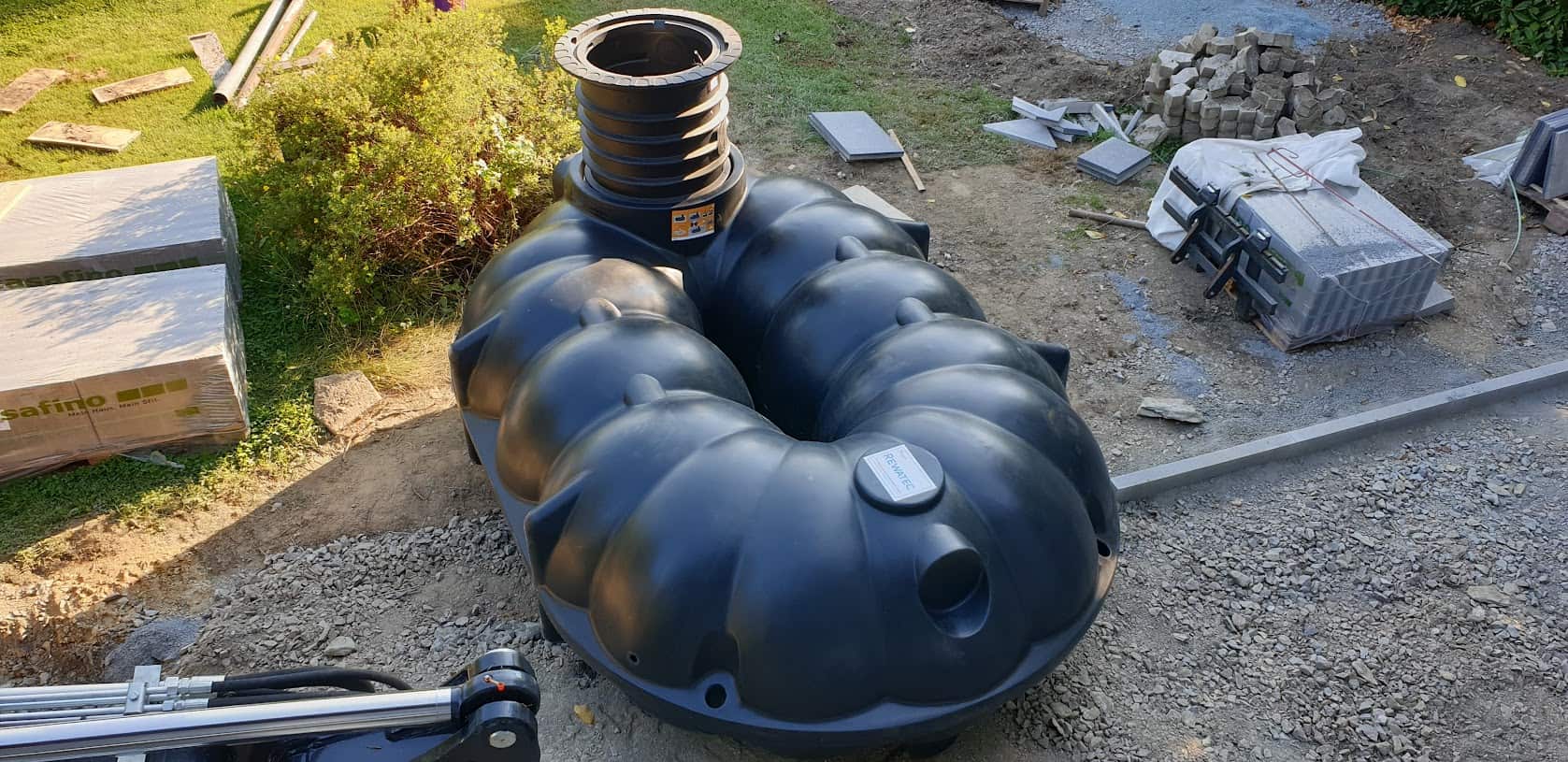
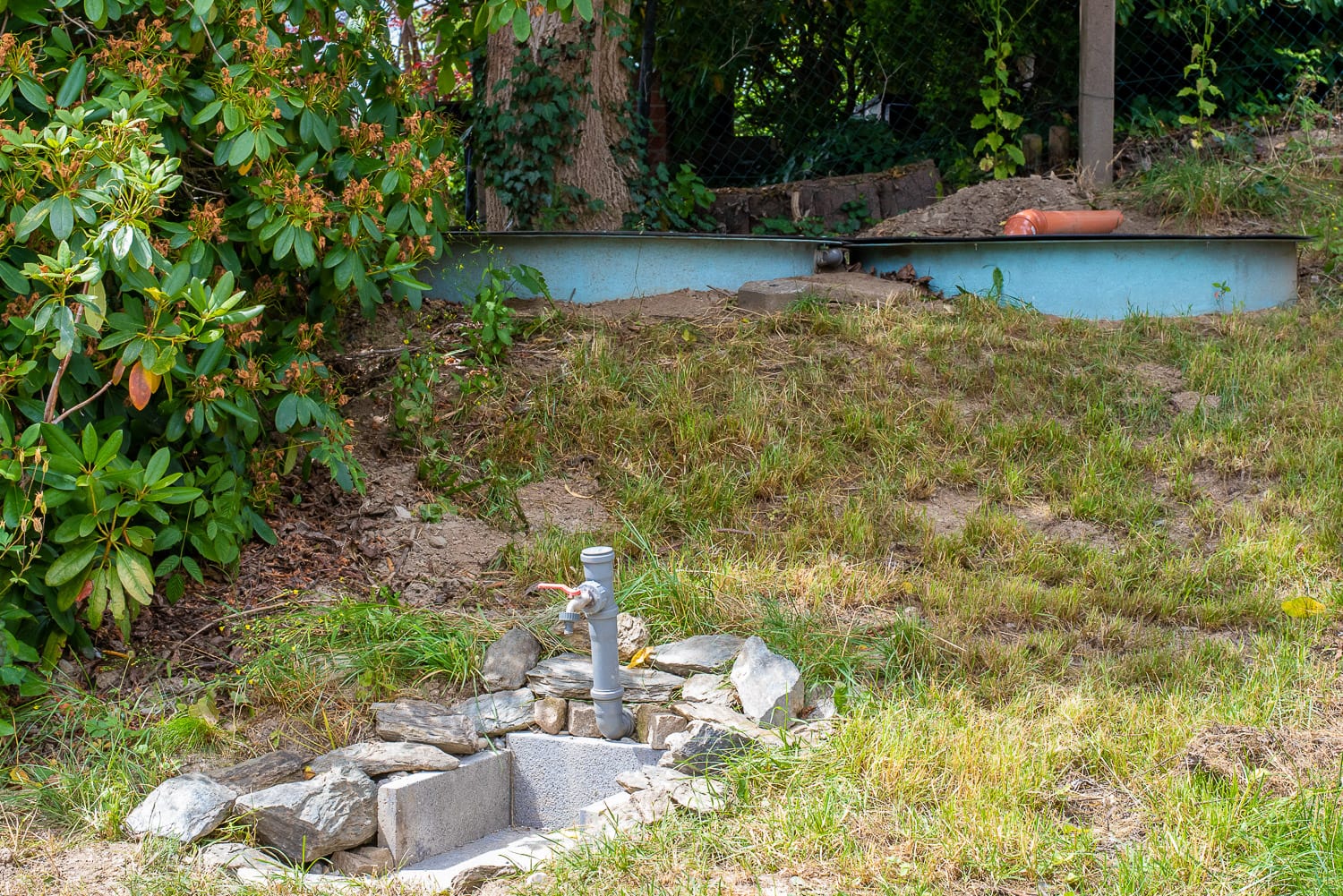
Rainwater is now a precious commodity. Last year we got a 5,000 litre rainwater cistern from Rewatec. It’s rarely worth having something like this installed just for the rainwater, as the effort and costs are considerable.

5.000 litre rainwater cistern from Rewatec

However, when renovating our patio, we realised that our guttering was dilapidated and the digger was already there anyway, so the cistern could be installed with little effort. The rain that falls on the 75 square metres of the south side of the roof now flows into it – if it rains at all …

We feed our Gardena sprinklers from the cistern, which are supplied by a Renkforce submersible pump (which has been in service for 5-7 years). Of course, we want to know how much water is in the cistern so that we can then control the irrigation. In addition, the submersible pump needs a minimum fill level of 8 cm so that it does not run dry.

DIY solutions usually unreliable

There are several DIY approaches for measuring the water level, but they often work rather poorly. Ultrasonic sensors that are aimed at the water surface not only suffer from the damp environment and then fail, but often do not measure correctly due to reflections. The same applies to optical TOF (Time of Flight) sensors. Capacitive sensors tend to measure inaccurately, as impurities change the dielectric constant of the water. I also experimented with this, but quickly abandoned it.

Tests with capacitive water level measurement

Cascades with reed relays and resistors and a float with a magnet work well and are robust, but only have a very coarse resolution. This is rather unsatisfactory for a cistern that can reach a maximum level of 1.05 metres.

Floats with pulleys and rope on a potentiometer are too adventurous.

Pressure sensors, on the other hand, are very accurate. Small pressure sensors, such as those built into blood pressure monitors, would be sufficient for the application and are quite inexpensive. However, they do not take into account the variable air pressure acting on the water column and do not provide accurate readings, and the hose to the sensor is also prone to clogging.

TL-136 pressure sensor as a solution

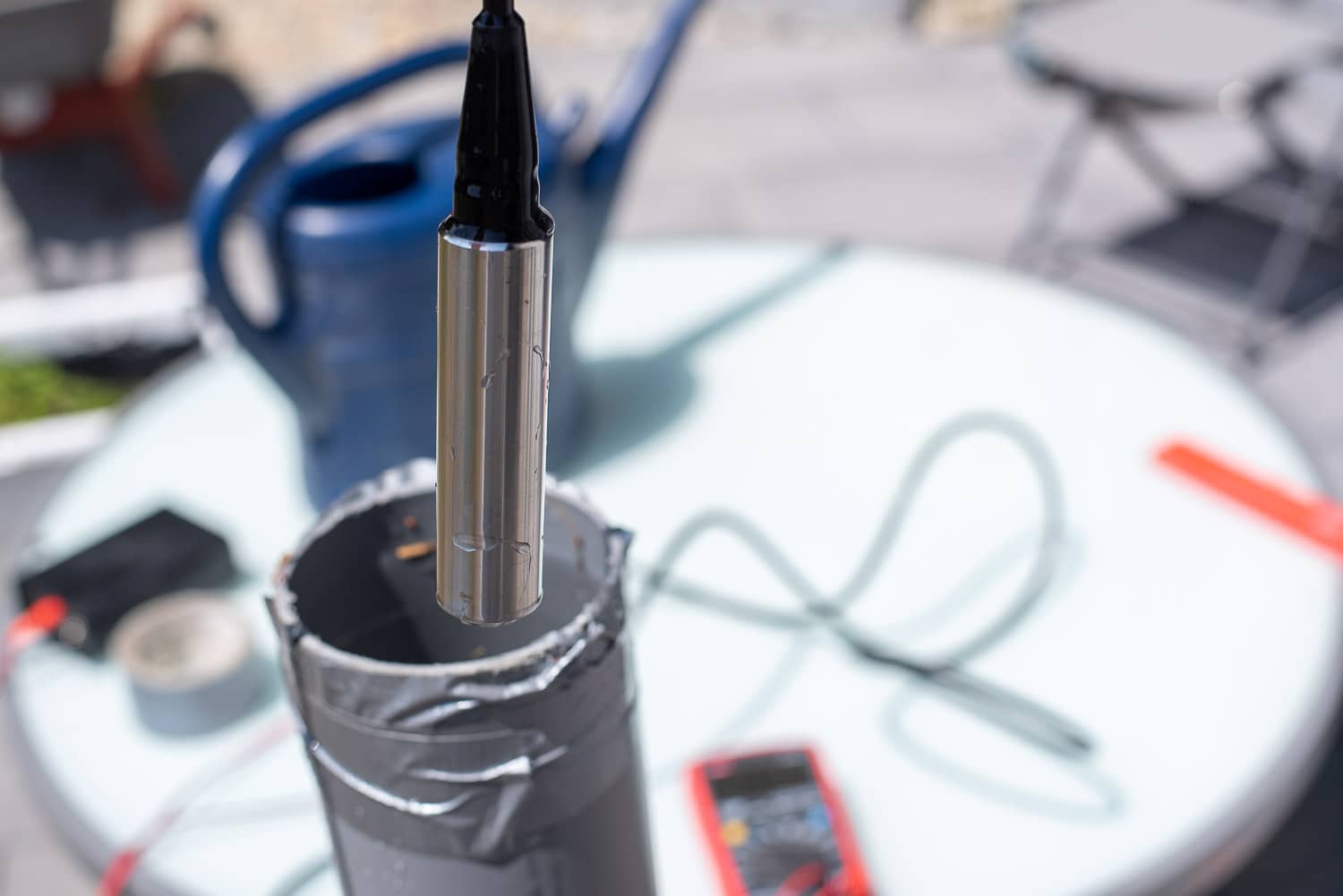
Piezoelectric pressure sensors, the TL-136 liquid level transducer, are not quite as inexpensive, but are robust and accurate. These also have a small tube in the supply line that allows the external pressure to flow into the measurement. These sensors are available for various filling levels for around 50 euros. For this you get a solid stainless steel housing with a very simple control unit. The sensor is simply placed at the bottom of the cistern or tank. I chose the 0-1 metre model as the overflow of my cistern is already at 105 cm. The 0-1 metre model should also be suitable for the popular IBC containers, as you don’t let them fill up to the last centimetre.

TL-136 sensor

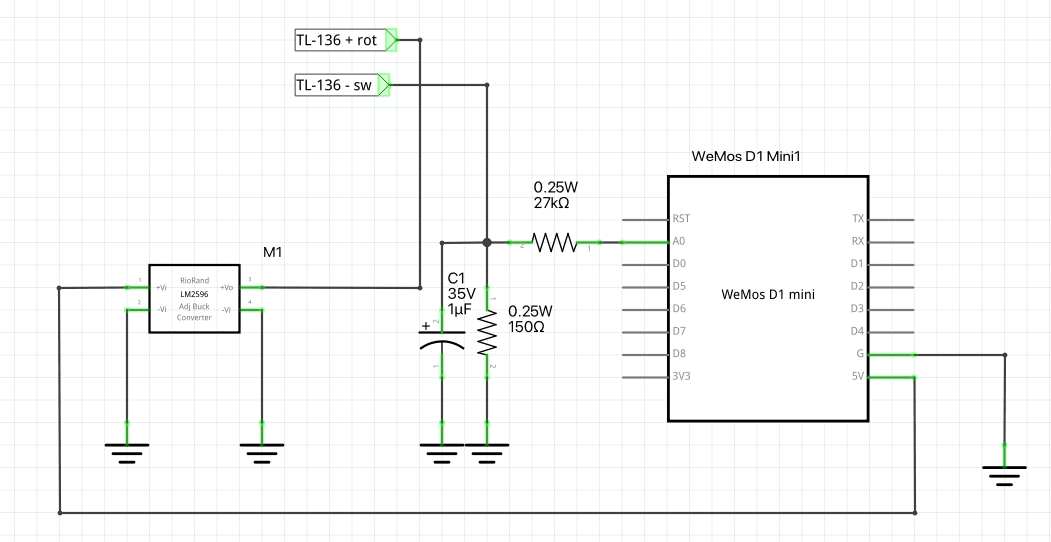
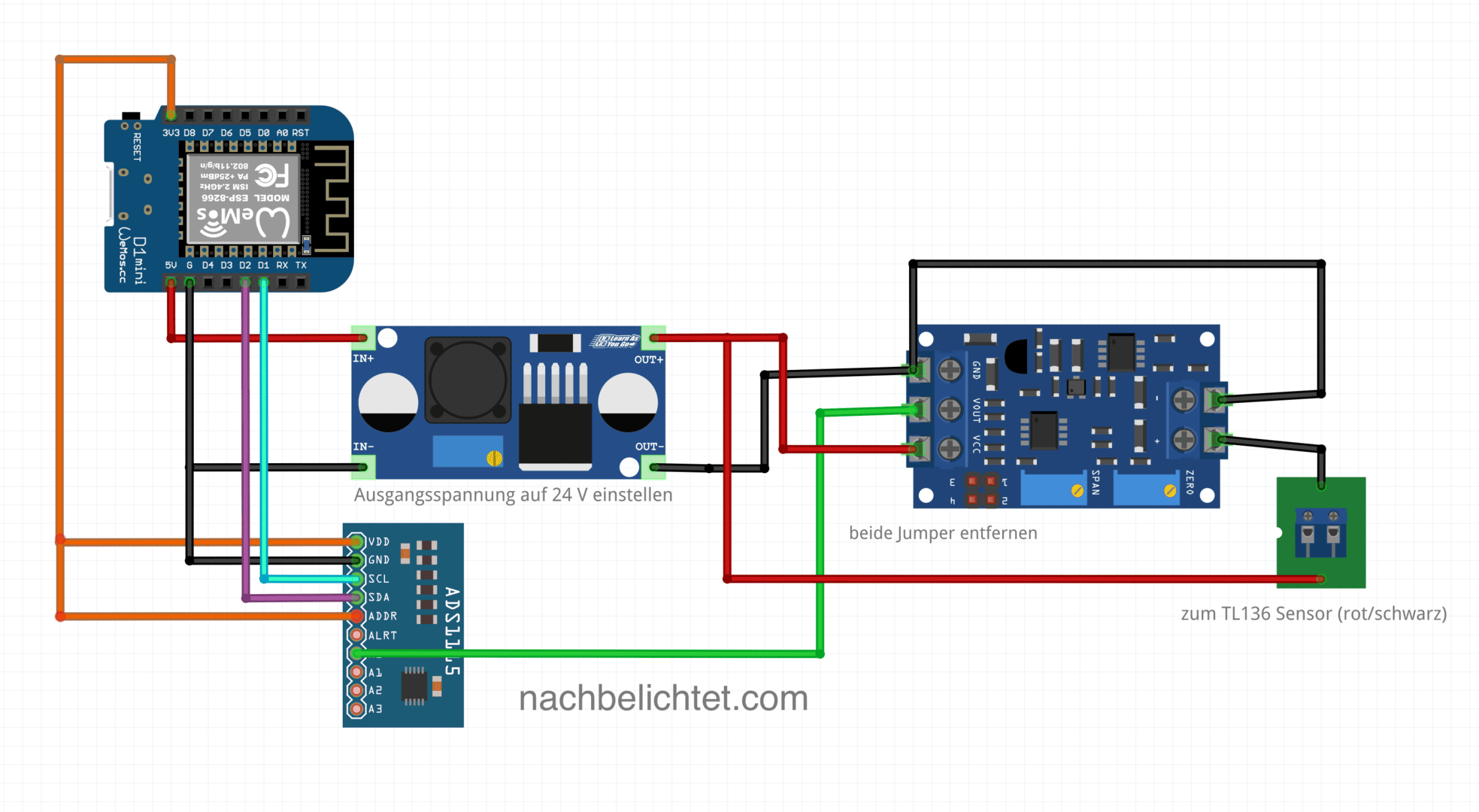
The sensor is supplied with 24 volts and converts the pressure in the range 0-20 mA. The current must therefore be measured in order to calculate the fill level and later the fill quantity. There are inexpensive small modules with a transconductance converter, i.e. the conversion of a current into a voltage. However, you can also simply use a resistor to pick up the dropped voltage.

With a 150 Ohm resistor, you can tap the range up to 100 cm in such a way that it becomes a voltage with a maximum of 3.2 volts – ideal for the ADC of an ESP8266 or ESP32. With a 27 kOhm resistor in series to the analogue input of the ESP, you have additional protection, as this can tolerate a maximum of 3.3 volts. I still like to use the practical and inexpensive WeMos D1 Mini.

Circuit diagram with an ESP8266 WeMos D1 Mini

There is no need to use an additional power supply for the sensor’s 24 volts. A step-up converter does the job and can generate the 24 V from the 5 V pin of the ESP. The step-up converter is set to the required 24 V output voltage BEFORE installation.

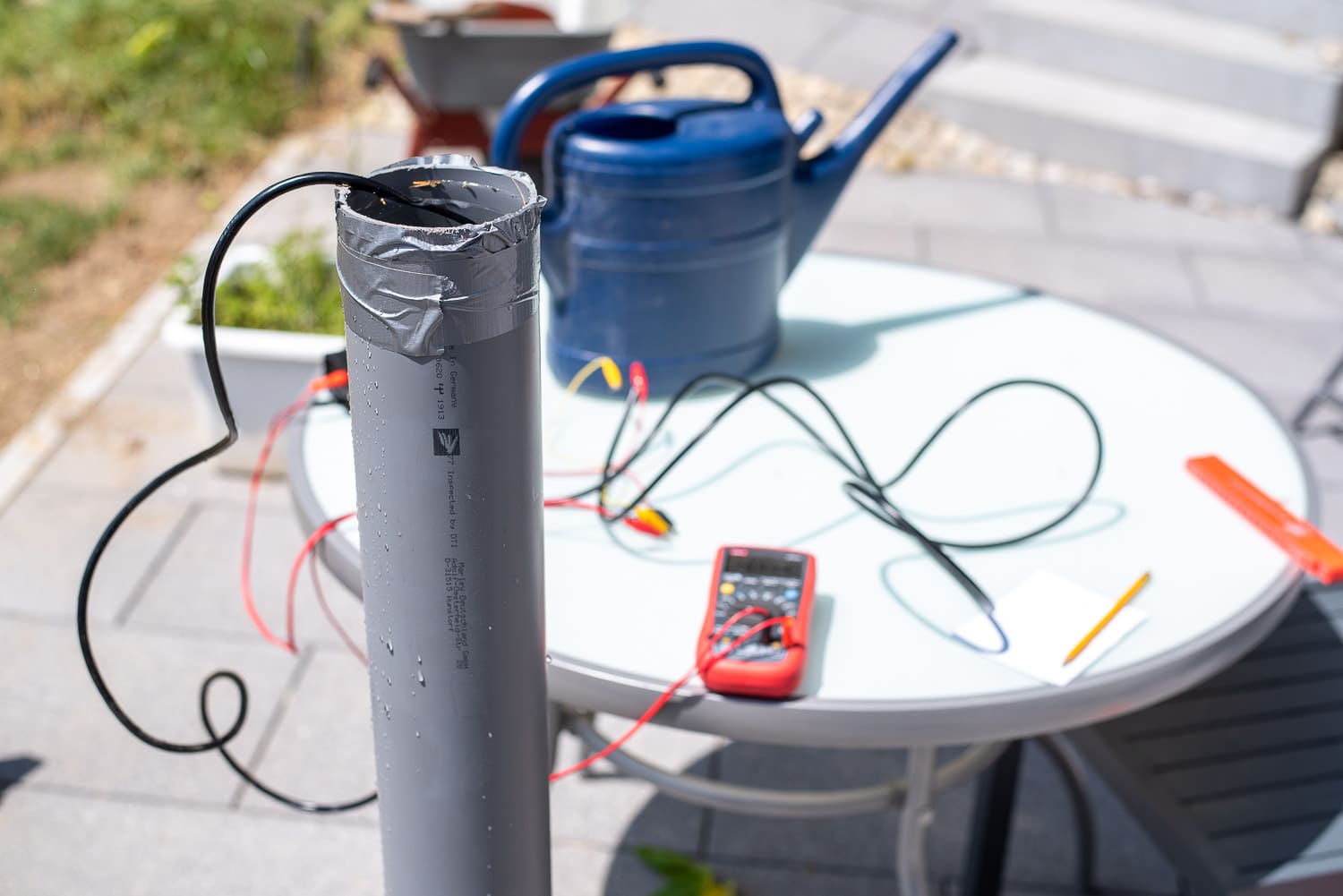
Test setup with a water-filled HT tube and multimeter

To find out which voltage is output at which fill level, I put a plug in a 100 mm HT pipe, filled it with water, immersed the sensor to different depths and measured the voltage. The hydrostatic pressure in such a pipe at the same depth is just as high as in a 5,000 litre cistern.

Determine immersion depth and measured values

The ESPHome code for water level measurement

The code for the ESPHome sensor is fairly self-explanatory. The A0 pin, i.e. the analogue-digital converter, is read out. Incidentally, the ESP8266 does not output 0 – 3.3 volts here, but 0 – 1 V. I have therefore installed a filter with – multiply: 3.3. The id: levelraw allows me to access the level in centimetres again later in another function.

esphome:
  name: waterking
  platform: ESP8266
  board: d1_mini


# Enable logging
logger:
  baud_rate: 0

# Enable Home Assistant API
api:

ota:
  password: !secret ota password
wifi:
  ssid: !secret wifi_ssid
  password: !secret wifi_password

  # Enable fallback hotspot (captive portal) in case wifi connection fails
  ap:
    ssid: "Waterking Fallback Hotspot"
    password: !secret fallback password

captive_portal:


sensor:
  - platform: adc
    pin: A0
    name: "Wasserstandcm"
    id: levelraw
    update_interval: 2s
    filters:
      - multiply: 3.3
      - sliding_window_moving_average:
          window_size: 30
          send_every: 30
      - calibrate_linear:
            - 0.61 -> 0.0
            - 0.76 -> 0.075
            - 0.8 -> 0.09
            - 0.81 -> 0.1
            - 0.8411 -> 0.12
            - 0.99 -> 0.172
            - 1.04 -> 0.22
            - 1.2 -> 0.25
            - 1.8 -> 0.5
            - 2.4 -> 0.75
            - 2.66 -> 0.9
            - 2.983 -> 1.0
            - 3.2 -> 1.19
      - multiply: 100
    accuracy_decimals: 1
    unit_of_measurement: cm
    icon: "mdi:car-coolant-level"

  - platform: adc
    pin: A0
    name: "Cistern Volt"
    update_interval: 5s
    filters:
      - multiply: 3.3
      - median:
          window_size: 7
          send_every: 4
          send_first_at: 3

  - platform: template
    name: "Cistern litre"
    lambda: |-
      return id(levelraw).state;

    filters:
      - calibrate_linear:
          - 4 -> 80
          - 10 -> 200
          - 12.5 -> 300
          - 15 -> 400
          - 17.5 -> 500
          - 20 -> 600
          - 25 -> 850
          - 27.5 -> 1000
          - 40 -> 1700
          - 45 -> 2000
          - 60 -> 3000
          - 70 -> 3600
          - 80 -> 4000
          - 85 -> 4400
          - 90 -> 4700
          - 95 -> 4900
          - 100 -> 5100
    unit_of_measurement: l
    accuracy_decimals: 0

  - platform: template
    name: "Idraw"
    lambda: |-
      return id(levelraw).state;

The median smoothes the values, as the signal is somewhat noisy. I have not yet found out why. The voltage supply of the step-up converter is stable. However, the noise is in the range of 0.5 cm fill level, which is negligible. The accuracy of the sensor itself is specified as 0.2 – 0.5 % FS. At a fill level of 0 – 1 metre, the 0.5 cm noise is exactly 0.5 % …

[Update] A 1 uF capacitor between ground and A0 provides some noise reduction and is included in the circuit diagram.

[Update 2] The A/D converter of the ESP8266 is not suitable for such measurements and does not work linearly. The Espressif data sheets say the same. That’s why I’m now using an ADS1115 AD converter, which has eliminated the noise. However, I have to recalculate the values and the cistern is currently full. An update will be coming soon.

The calibrate_linear filter converts the voltage into the actual fill level, because the sensor is not completely linear. I have determined the first values with my test setup and am now gradually correcting them with the values from the cistern. The – multiply: 100 filter ensures that the output is in centimetres.

Wasserstandsensor Home Assistant

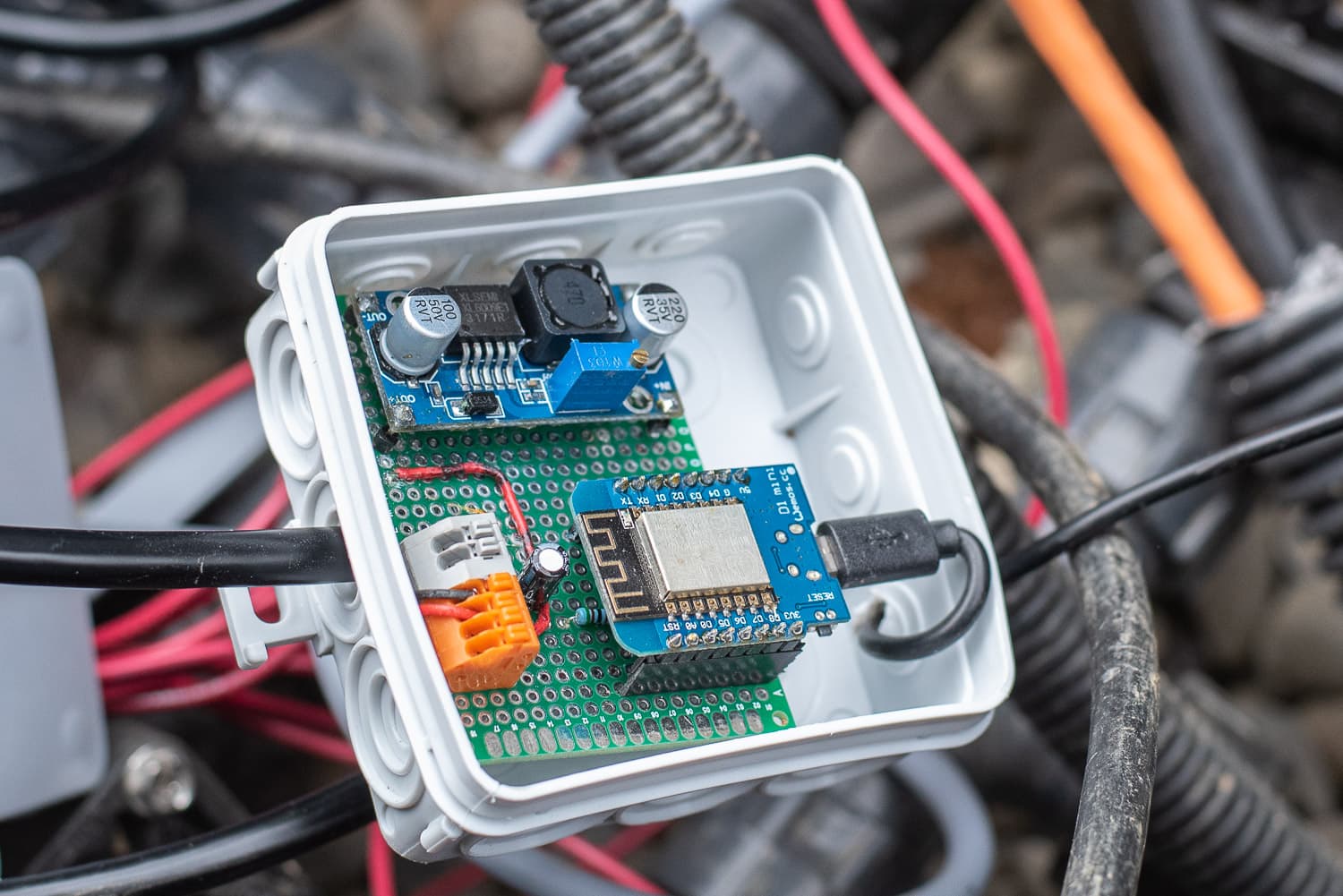
The circuit on a perfboard in a junction box

I then query the ADC a second time to obtain an output in volts, which I can use to gradually correct the linear filter with the real fill levels.

The second function starts with – platform: template

Here I get the value in centimetres with return id(levelraw).state; and then convert it to the fill level in litres with another – calibrate_linear filter.

TL - 136 Flüssigkeitsstandsender Wasser Ölstandsensor Detektor 24VDC 420mA Signalausgang(0-2m), SenderTL – 136 Flüssigkeitsstandsender Wasser Ölstandsensor Detektor 24VDC 420mA Signalausgang(0-2m), Sender

Convert filling height to volume with level curve

My Rewatec cistern has a rather complex shape, so the fill levels in litres are not linear over the fill level. Rewatec sent me a fill level curve on request. This allows the fill level to be converted as a function of the fill level. As mentioned before: With 5,000 litres, it doesn’t matter whether 20 litres more or less are displayed. The rest is just an auxiliary function that can be omitted.

Fill level curve of the cistern

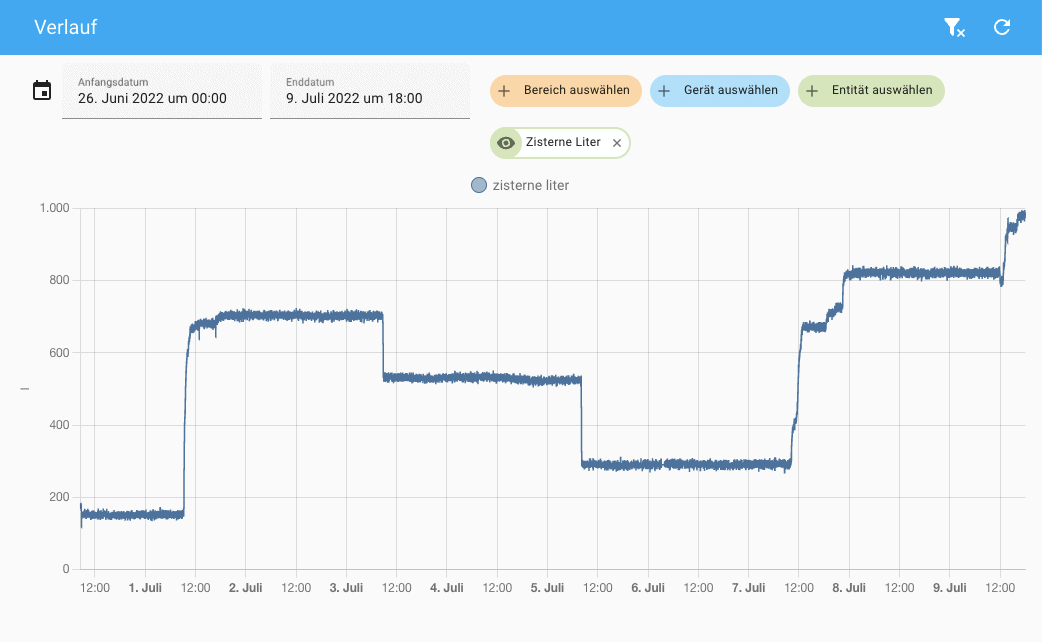
At the moment it is also very dry here, so the water level in the cistern is at a very low level of 10 – 25 centimetres and therefore 150 – 1000 litres.

Level progression over 10 days with irrigation and little rainfall

However, you can easily see the inflows and outflows and can therefore also determine how many litres 5 minutes of lawn watering is. In our case, we get about 150 litres per watering. You can also easily recognise rainfall and the rapid rise in the level.

Füllstand Zisterne Home Assistant

Level rise during rain

As we also have two recessed and connected rain barrels with 1,500 litres each, I will also be installing a sensor here soon.

The two recessed rainwater barrels will also be fitted with a TL-136

Overall, the solution with the TL-136 liquid level transmitters is a simple and sufficiently accurate solution for measuring fill levels. The sensors are robust and easy to control. They can be easily corrected with the linear filters of the ESPHome platform, so that an accuracy in the range of 1 % is possible. This is more than sufficient for use in rainwater barrels and cisterns.

Fill level display in Home Assistant

The values obtained can be used to dynamically control the watering time, for example by shortening the watering time when there is only a little water left in the cistern.

Update 2023 – more reliable and accurate measurement

As announced last year, I have optimised the water level sensor. The problem with the original project was the poor ADC of the ESP8266, which was very noisy. In addition, the circuit with the simple measuring resistor was not particularly reliable, which was also correctly noted here in the comments. Due to the winter season and other projects, the update took a little longer than planned.

As already described, I am now using an ADS1115 4-channel ADC. You only need one of the 4 channels of the ADS1115, so you still have 3 ADCs left for other tasks.

After a few tests, I also decided in favour of the inexpensive current transformer / transducer. This small module not only has the advantage that the input of the ADS1115 never sees more than 3.3 volts. All jumpers on the module are removed for this purpose. You can also set the zero point (sensor not immersed) and the maximum output voltage. This allows you to maximise the measuring range, even if you only have to measure up to a maximum of 70 cm with a 0-1 metre sensor, for example. I have desoldered the terminals so that I can solder the module to my strip grid board.

Simplified circuit diagram of the new version with ADS1115 (click to enlarge!)

Following a tip in the comments, I had to refresh my knowledge of 4-20 mA current loops (that was almost 30 years ago and I no longer had it to hand): These current loops are very robust against interference and can be 100 m or more long. This means you can extend the TL136 sensor into the house, where the associated electronics are installed in a warm and dry place

The wiring is very simple. The ADS1115 is connected to the Wemos via I2C bus, the output of the transducer is connected to an input (ADC0 in my case) of the ADS1115.

TL136 Wasserstandssensor

First tests and series of measurements with the new electronics

Using the trimmer labelled “Zero” in the circuit diagram, set the output voltage of the module (green cable in the diagram) to almost 0 volts when the sensor is not immersed. Now immerse the TL136 sensor to the maximum depth at the maximum fill level and set the voltage at the output (green cable in the diagram) to just under 3.3 volts using the “Span” trimmer. This makes optimum use of the possible measuring range and gives the maximum resolution.

I again took a series of measurements in 10 cm steps and noted the corresponding voltages. As before, this is used to calculate the filling height in centimetres and from this the filling quantity according to the manufacturer’s filling diagram.

Thanks to the transducer and the ADS1115, you are rewarded with a very precise (although already excessive for the application) and noise-free measurement. The residual noise is a maximum of 0.1 % and thus corresponds to the tolerance of the TL136 sensor.

Here is a comparison of the old method with the new one, which probably speaks for itself:

Zoomed in sharply, you can see that the deviation is now only – 1mm:

The remaining ADC channels of the ADS1115 can be used, for example, for simple soil moisture sensors etc.

As there were still GPIOs free on the Wemos anyway, I also provided an input for 1-wire sensors. The inexpensive DS18B20 temperature sensors can be used, for example, to record the ground temperature, the temperature in the shed or the water temperature in the cistern. Several of these 1-wire sensors can be operated in parallel at one input.

Parts list:

The new code with ADS1115 and 1-Wire (the 1-Wire circuit is not included in the circuit diagram – you can do it yourself if you need it 😉 !) looks like this for me:

esphome:
  name: cistern
  platform: ESP8266
  board: d1_mini


# Enable logging
logger:
  baud_rate: 0

# Enable Home Assistant API
api:

ota:
  password: !secret ota_password

wifi:
  ssid: !secret wifi_ssid
  password: !secret wifi_password
  use_address: cistern.local


  # Enable fallback hotspot (captive portal) in case wifi connection fails
  ap:
    ssid: "Waterking Fallback Hotspot"
    password: !secret fallback_password

captive_portal:

# Configure i2c bus on D1 and D2
i2c:
  id: bus_a
  sda: D2
  scl: D1
  scan: True

# 1-wire sensors on pin D4
dallas:
  - pin: D4

# Set up ADC, ADDR pin is connected to VCC, therefore address 0x49
ads1115:
  - address: 0x49
    id: ads1115_49

# ADC channel A0 for measured value acquisition 
sensor:
  - platform: ads1115
    multiplexer: 'A0_GND'
    gain: 4.096
    name: "Water level cistern cm"
    id: levelraw
    update_interval: 2s
    unit_of_measurement: cm
    accuracy_decimals: 1
    icon: "mdi:car-coolant-level"
# Smooth measured values:
    filters:
      - sliding_window_moving_average:
          window_size: 20
          send_every: 20
# Convert voltages to fill level according to measurement series      
      - calibrate_linear:
          - 0.0 -> 0.0
          - 0.3 -> 10
          - 0.69 -> 20
          - 1.0 -> 30
          - 1.35 -> 40
          - 1.75 -> 50
          - 2.03 -> 60
          - 2.42 -> 70
          - 2.7 -> 80
          - 3.1 -> 90

# Calculate fill quantity according to fill level curve

  - platform: template
    name: "Cistern litres"
    lambda: |-
      return id(levelraw).state;

    filters:
      - calibrate_linear:
          - 4 -> 80
          - 10 -> 200
          - 12.5 -> 300
          - 15 -> 400
          - 17.5 -> 500
          - 20 -> 600
          - 25 -> 850
          - 27.5 -> 1000
          - 40 -> 1700
          - 45 -> 2000
          - 60 -> 3000
          - 70 -> 3600
          - 80 -> 4000
          - 85 -> 4400
          - 90 -> 4700
          - 95.5 -> 4980

    unit_of_measurement: l
    accuracy_decimals: 0

# 1-wire temperature sensor 

  - platform: dallas
    address: 0xef0516905a21ff28
    name: "Cistern Sens1"
    unit_of_measurement: °C
    accuracy_decimals: 1

If you wish, you can also connect a display to show the water level, temperature etc. via the I2C bus or the Wemos SPI bus pins D5, D6 and D7. An LC display of type 1602/HD44780 or a MAX7219 7-segment display are suitable here. I also use the latter in my “Waterking” irrigation controller, which also displays the water level in the cistern.

Home Assistant Server auswählen: 3 Ausbaustufen mit Vor- und Nachteilen

Home Assistant kann man getrost als “DEN” Smarthome Hub bezeichnen. Innerhalb weniger Jahre hat es OpenHAB, ioBroker und andere Systeme hinter sich gelassen. Gründe dafür sind die riesige Entwicklergemeinde, viele Integrationen, Add-ons und Erweiterungen sowie die immer einfachere Handhabung. Home Assistant zählt mittlerweile zu den größten Open-Source-Projekten überhaupt. Die Einstiegshürden fallen immer weiter und was vor ein paar Wochen noch per YAML in der Konfigurationsdatei manuell eingestellt werden musste, wandert immer öfter in die Benutzeroberfläche und kann per Mausklick konfiguriert werden.

Da ich ständig Beiträge im Home Assistant Forum, bei Reddit oder bei Discord verfolge, um selbst am Ball zu bleiben, ist mir ein Problem aber besonders aufgefallen: Welche Hardware soll ich für den Einstieg in Home Assistant wählen?

Der Klein(st)-Rechner Ansatz

Anfänglich war Home Assistant eine typische Anwendung für einen Raspberry Pi. Der kompakte Alleskönner war preiswert, vergleichsweise leistungsfähig und benötigte wenig Energie. Dann kam die Chip-Krise, und die Preise für den Raspi schossen in absurde Höhen – sofern er überhaupt noch zu haben war.

Raspberry Pi 4 mit SSD am USB3.0 Port

Nabu Casa, der kommerzielle Teil hinter Home Assistant, brachten im Laufe der Zeit auch eigene Hardware heraus. Darunter den Home Assistan Green, Yellow und Blue. Allesamt waren bereits mit Home Assistant ausgestattet und hatten teilweise auch ZigBee an Bord. Natürlich macht ein so vorkonfigurierter Rechner den Einstieg in Home Assistant einfacher, wenngleich er nicht bei der Konfiguration der Smarthome-Anwendungen hilft. Zudem waren diese Rechner in Deutschland nicht einfach zu bekommen und Nabu Casa scheint den Ansatz eigener Hardware auch nicht mehr stark zu verfolgen.

Der Raspberry Pi: Für den Einstieg und kleine Systeme okay

Wer aber einen Raspberry Pi 3 Model B herumliegen hat, kann damit einen einfachen Home Assistant Server aufsetzen, mit dem man erst einmal in die Thematik hineinschnuppern kann. Allerdings hat dieser zu wenig RAM für größere Installationen. Möchte man erst einmal auf der Raspberry-Plattform bleiben, sollte es schon ein Raspberry 4 oder 5 sein.

Der Raspberry 5 hat den großen Vorteil, dass er nicht nur eine höhere Rechenleistung mitbringt, sondern auch direkt mit einer SSD betrieben werden kann. Dazu ist ein zusätzlicher Adapter nötig, der, zusammen mit z. B. einer 256 GB M.2 SSD etwa 40 € kostet. Die SSD erhöht nicht nur die Geschwindigkeit, sondern auch die Betriebssicherheit, im Vergleich zu einer SD-Karte.

Dazu benötigt man aber auch noch ein Netzteil, ein Gehäuse, evtl. auch noch einen Lüfter, sodass man mit dieser Kombination schon bei etwa 150 € für ein komplettes Raspi-System liegt.

Da der Raspi auf der ARM-Architektur basiert, kann man darauf keine Virtualisierung mit Proxmox betreiben, da diese x86-Prozessoren voraussetzt. Will man auch noch Überwachungskameras mit Frigate betreiben, geht selbst dem Raspi 5 schnell die Luft aus.

Vorteile Raspberry Pi

  • Wenn ohnehin vorhanden: Ein preiswerter und schneller Einstieg
  • Sehr geringer Strombedarf (etwa 100 kWh pro Jahr = 30 €)
  • Leise (wenn kein Zusatzlüfter zum Einsatz kommt)
  • geringer Platzbedarf

Nachteile Raspberry Pi

  • vergleichsweise teuer, wenn er neu gekauft werden muss
  • Rechenleistung bei wachsender Home Assistant Installation vielleicht bald nicht mehr ausreichend
  • Wenig USB-Ports
  • SSD für stabilen Betrieb empfohlen

Günstige Mini-PCs und gebrauchte PCs als Raspberry-Alternativen

Für 150 € erhält man mittlerweile nagelneue Mini-PCs mit INTEL Alter Lake CPU (N100), 16 GB RAM, 500 GB SSD und kompaktem Gehäuse. Diese PCs benötigen oft nur unwesentlich mehr Strom, bieten aber ungleich mehr Leistung, als ein Raspi 5. Oft gibt es diese Kleinst-PCs sogar mit 2 LAN-Ports, sodass man hier später auch Dinge wie Firewalls realisieren kann.

Asus PN52S Mini PC

Wer es noch günstiger und trotzdem leistungsfähig haben möchte, kann sich bei spezialisierten Gebraucht-PC-Händlern nach wiederaufbereiteten (Refurbished) Mini-PCs umsehen. Interessante Modelle sind hier etwa HPs Elitedesk 600 und 800, Dell Optiplex Mini-PCs oder Lenovo Thinkcentre aus der M-Reihe. Häufig bekommt man hier Rechner mit i5 CPU, 16 GB und SSD für unter 100 €. Allerdings scheint der Run auf Home Assistant auch bei den Preisen der gebrauchten Kleinst-PCs angekommen zu sein.

Ebenso kann ein ausgedienter Mac Mini (soll sogar mit Apple Silicon funktionieren, also M1 etc.) oder ein alter Laptop eine gute Basis für Home Assistant sein.

Vorteile Mini-PCs

  • Meist nicht teurer als ein aktueller Raspi
  • Leistungsfähiger als ein Raspi
  • SSD ist standardmäßig im System
  • Deutlich mehr RAM macht sie zukunftssicherer
  • Häufig mehr USB-Ports und teilweise interne Erweiterungsmöglichkeiten
  • x86 CPU ermöglicht Virtualisierung mit Proxmox
  • Betrieb von Überwachungskameras mit Frigate möglich
  • Einfache Verfügbarkeit und große Auswahl an Hardware-Ausstattung
  • Bei Laptops hat man mit dem eingebauten Akku sogar eine Notstromversorgung bei Stromausfällen

Nachteile Mini-PCs

  • Etwas höherer Stromverbrauch im Vergleich zum Raspberry Pi
  • Je nach Modell, etwas mehr Stellfläche notwendig
  • Möglicherweise Lüftergeräusche

Auf einem der genannten Mini-PCs kann die Virtualisierungsumgebung Proxmox installiert werden (siehe unten). Damit lassen sich auch andere Dienste wie ein NAS mit OpenMediaVault, ein Medienserver mit Plex usw. parallel zu Home Assistant betreiben.

NAS-Systeme mit x86-Hardware

Seit einigen Jahren gibt es auch für den privaten Bereich leistungsfähige NAS-Systeme, die mit x86 Hardware von INTEL laufen und 2 GB und mehr RAM bieten. Diese gibt es von Synology, QNAP und auch Asustor. Gerade letztere bieten ein hervorragendes Preisleistungsverhältnis, 4 GB RAM, M.2 SSD-Steckplätze und vieles mehr.

Die Installation von Home Assistant erfolgt hier meist über Docker Container, wobei die Installation bei den meisten Systemen direkt aus deren App-Stores erfolgen kann (siehe: Home Assistant – ASUSTOR NAS)

Natürlich kauft man kein NAS, weil man Home Assistant betreiben möchte. Wenn es aber ohnehin vorhanden ist oder Bedarf an viel lokalem Speicherplatz besteht, sind entsprechend ausgestattete NAS-Systeme eine Möglichkeit, Home Assistant zu betreiben, ohne zusätzliche Hardware anschaffen zu müssen.

Vorteile NAS-Systeme:

  • Wenn ohnehin vorhanden: einfach und kostengünstig
  • Home Assistant Installation häufig per Mausklick möglich
  • Viel Speicherplatz
  • Meist ausreichend zusätzliche USB-Ports für ZigBee-Sticks, Backup-Laufwerke etc. vorhanden

Nachteile NAS-Systeme:

  • Bezahlbare Leistung meist eingeschränkt
  • Höherer Strombedarf (lässt sich mit SSD, anstatt mechanischer Laufwerke, senken)
  • Echte Virtualisierung oft nur mit besserer Hardware-Ausstattung möglich

Proxmox Virtualisierung als Basis

Mein System läuft seit vielen Jahren auf einem HP Microserver Gen1, den es 2017 spottbillig gab (200 € ohne Festplatten). Da ich ohnehin noch eine INTEL Xeon 1230 CPU herumliegen hatte und diese in den kleinen Server passte, habe ich auch heute noch mehr als genug Leistung für meine Proxmox-Virtualisierung.

Auf dieser läuft nicht nur Home Assistant Supervised mit diversen Add-ons sehr flott und zuverlässig, sondern auch ein LXT-Container mit Frigate für 5 Überwachungskameras und Google Coral TPU, OpenMediaVault als NAS, sowie ein LXT-Container mit Docker und Portainer zur Verwaltung.

Mit Docker werden Paperless NGB (Dokumentenmanagement), PiHole (zentraler Adblocker), Calibre Web (e-Book Verwaltung), Teslamate (Erfassung von Tesla Fahrzeugdaten, zentraler Backup-Server mit Duplicati, Syncthing und vieles mehr bereitgestellt.

Man könnte vieles davon auch mit Home Assistant Supervised und den entsprechenden Add-ons innerhalb von Home Assistant realisieren. Allerdings möchte ich innerhalb von Home Assistant nur Dienste betreiben, die auch direkt etwas mit dem Thema “Smarthome” zu tun haben. Läuft ein Add-on einmal Amok (was mir schon mit VSCode passiert ist), kann es auch Home Assistant in Mitleidenschaft ziehen. Das soll aber ja möglichst 24/7 stabil zu zuverlässig zur Verfügung stehen, daher trenne ich alles, was nicht direkt mit dem Smarthome zu tun hat, von Home Assistant.

Zusätzlich gibt es auf meinem Server eine virtualisierte Windows 10 Installation, auf die ich auch aus der Ferne zugreifen kann, sowie eine Linux Mint Maschine – ebenfalls mit Fernzugriff.

Monitoring des Proxmox Servers mit VMs in Home Assistant

Das alles lastet den mittlerweile betagten Server durchschnittlich nur zu 30 % aus.

Die Virtualisierung mit Proxmox hat dabei aber gleich mehrere Vorteile:

Mittels Snapshots kann ich vor jedem Home Assistant Update ein Abbild der aktuellen Installation erstellen und notfalls per Mausklick diesen Zustand wiederherstellen. Ich kann ebenso eine virtuelle Maschine klonen und als Testsystem mit allen bisherigen Einstellungen nutzen.

Die Backup-Funktion von Proxmox sichert die komplette Home Assistant Installation samt Betriebssystem. Im Fall einer Hardware-Havarie kann die Sicherung der virtuellen Maschine auf einem anderen System wiederhergestellt werden.

Die vorhandene Hardware kann für viel mehr als nur Home Assistant genutzt und damit optimal ausgelastet werden.

Natürlich benötigt mein Mini-Server mit einer SSD, 4 mechanischen Festplatten, 16 GB RAM und XEON-CPU, vergleichsweise viel Strom – im Schnitt etwa 35 Watt – dafür erschlägt er gleich mehrere Aufgaben und dank PV-Anlage ist der Mehrverbrauch zu vernachlässigen.

Allein die einfache Sicherung per Snapshots und Komplett-Backup des Systems, macht einen PC mit Proxmox zu einer der besten Lösungen für Home Assistant. Hier kommen etwa auch Eigenbau-Lösungen infrage: Im Computermagazin c’t gab es hier einen interessanten Bauvorschlag für einen stromsparenden Heimserver unter 400 €.

Der größte Nachteil des Proxmox-Wegs ist die höhere Komplexität. Man muss sich zusätzlich in das Thema Virtualisierung und Proxmox einarbeiten, wobei dessen hohe Verbreitung und die dadurch vorhanden Tutorials helfen.

Vorteile Proxmox:

  • Die Hardware kann für viele Dienste genutzt und optimal ausgelastet werden
  • Integrierte Backup- und Snapshot-Funktionen
  • Virtuelle Maschinen können einfach dupliziert (geklont) werden
  • Backups virtueller Maschinen können im Fehlerfall schnell umgezogen werden
  • Einfacher Hardware-Wechsel
  • Läuft selbst auf kleinen x86-Rechnern zufriedenstellend

Nachteile Proxmox:

  • Höhere Komplexität und Einstiegshürden

Fazit

Wer sich mit dem Gedanken trägt, Home Assistant einsetzen zu wollen, sollte einige Überlegungen zur Hardware-Basis anstellen. Hat man einmal hineingeschnuppert, werden die Anforderungen an das, was Home Assistant leisten und können soll, schnell größer. Dinge wie lokale Sprachsteuerung mittels KI, Überwachungskameras etc. benötigen ausreichend Rechenleistung. Daher sollte man hier nicht am falschen Ende sparen. Ein Hardware-Wechsel ist zwar relativ einfach möglich, aber vermeidbar, wenn man gleich auf das richtige Pferd setzt.

Zudem übernimmt Home Assistant oft wichtige Funktionen und muss daher rund um die Uhr verfügbar sein und funktionieren. Eine Backup-Strategie ist daher unerlässlich, was mit virtuellen Maschinen ganz besonders komfortabel ist.

Aus meiner Erfahrung würde ich 2024 nicht mehr auf einen Raspberry Pi setzen, sondern PC-Hardware nutzen. Damit hält man sich auch die Möglichkeit offen, das System später einmal mit Proxmox zu virtualisieren.

Was das Thema Stromverbrauch des Home Assistant Servers angeht, solle man nicht vergessen, dass die Smarthome-Komponenten hier schnell den größeren Anteil am zukünftigen Stromverbrauch haben könnten. Jeder kleine Aktor und Sensor, LED-Strips, smarte Leuchtmittel, Sprachassistenten und WLAN-Steckdosen benötigen ein paar Watt, die sich schnell summieren.

Das Plus an Komfort und Möglichkeiten machen den Stromverbrauch des Home Assistant Servers meiner Ansicht nach aber wieder wett, sodass man hier zugunsten der Vorteile entscheiden sollte.

Wozu würde ich zukünftig greifen?

Stünde ich – mit meinen jetzigen Erfahrungen und Anforderung – vor der Wahl, würde ich mir einen kleinen Server auf Basis eines AMD Ryzen 5600GT, A520-uATX-Mainboard, 16 GB RAM und M.2 SSDs zusammenstellen und meine Proxmox-Konfiguration darauf umziehen. Das System wäre an den Vorschlag der c’t angelehnt. Eine große mechanische Festplatte das alten Servers, würde intern als Backup-Ziel weiterleben.

Die AMD 5600GT CPU hat auf dem Papier die 3-fache Leistung meiner jetzigen XEON-CPU, die jetzt – wie oben beschrieben – noch mehr als ausreichend ist.

Ich habe nicht den großen Bedarf an NAS-Kapazitäten, da ich keinen Medienserver etc. betreibe. Natürlich kann man den DIY-Server auch mit entsprechend viel Festplattenkapazität ausstatten.

Erfahrungen mit dem AL-KO Robolinho 1300 W Mähroboter nach 170 Mähstunden

Unser Robolinho 1300 W hat nun 170 Mähstunden hinter sich. Meine Erfahrungen mit dem Mähroboter von AL-KO sind in der Grunddisziplin durchwegs positiv.

Grunddisziplin bedeutet für mich: Er mäht bei jedem Start zuverlässig und gleichmäßig, ohne Bereiche auszulassen. Er bleibt nicht hängen und findet seine Basis. Hier funktioniert der Robolinho wie ein Uhrwerk, obwohl unser Grundstück alles andere als einfach ist. Es ist ein gewachsener Garten mit Unebenheiten, Steigungen, unregelmäßigem Randverlauf usw.

al-ko-robolinho-1300w-erfahrungen-test1

Der Mäher blieb bislang nur ein einziges Mal hängen und da fiel bei Sturm ein Rechen um, auf den er unglücklich aufgefahren ist. Ansonsten fährt der AL-KO Mähroboter unbeeindruckt aller Widrigkeiten seine Runden und hält hier teilweise 3 Stunden mit einer Akkuladung durch.

AL-KO Robolinho Erfahrungen und Test

Auf der neu angelegten Fläche auf den Rechen aufgefahren

Es ist eine richtige Freude, ihm beim Mähen zuzusehen, da die Rasenfläche sehr gleichmäßig bearbeitet wird und er auch regelmäßig in kleinere Ecken fährt. Vergangene Woche habe unserem Garten weitere 150 qm abgerungen und die Drahtschleife dort erweitert. Auch diesen, sehr rohen Bereich mäht er seitdem zuverlässig mit, ohne dass es bei der bisherigen Fläche Nachteile bringt. Wenn ich den Robolinho so beobachte, habe ich den Eindruck, dass er intern eine Karte erstellt. So wie er die Fläche mäht, sieht das ziemlich koordiniert und nicht ganz nach Zufallsprinzip aus.

Wartung und Messer

Der AL-KO Robolinho zeigt ein ausgezeichnetes Schnittbild mit glatten Schnitten an den Grashalmen und äußerst feinem Schnittgut, was wohl am speziellen Aufbau der Messerscheibe liegt. Höheres Gras mäht er problemlos und verringert seine Geschwindigkeit, wenn er mehr Widerstand beim Mähen registriert.

Die Messer nach 120 Stunden Mähzeit

Die Wartung ist einfach und der Robolinho lässt sich gut reinigen. Die Messer habe ich nach 100 Stunden gedreht und die bislang verwendete Seite mit meinem Work Sharp Ken Onion Messerschärfer selbst, rasiermesserscharf nachgeschliffen. Die Original-Ersatzmesser sind, auch wegen ihrer besonderen Form, deutlich teurer als die anderer Mähroboter. Man findet aber auch einige Drittanbieter, bei denen man deutlich günstigere Ersatzmesser für den AL-KO Robolinho bekommt.

Die App – ein Trauerspiel

Jetzt komme ich gleich zum größten Problem des AL-KO Robolinho: die App und Software. Wenn man sich die Bewertung der App ansieht – und das gilt für die iOS- und Android-Variante, erkennt man schnell, dass da was ganz und gar nicht stimmt.

Zwar gehören die Verbindungsprobleme, bei der sich die App gleich gar nicht mit dem Robolinho verbinden ließ, der Vergangenheit an – ich hatte hier im Februar auch keinerlei Probleme. Allerdings reagiert der Mäher nicht immer sofort auf Befehle der App und auch die Benutzeroberfläche ist ein undurchdachtes Sammelsurium an Symbolen und dahinter versteckten Funktionen.

Auf dem ersten Screen hat man z. B. unten rechts das übliche Icon für “Einstellungen”, dahinter kann man aber seine verbundenen Geräte neu anordnen. Nun haben vermutlich die wenigsten Anwender mehrere Rasenroboter und wenn doch, wird man die nicht jeden Tag neu anordnen wollen.

Swiped man nach links, bekommt man einen neuen Screen, auf dem man nur ein neues Gerät hinzufügen kann. Warum nutzt man diesen Screen nicht etwa für die Konfiguration der Mähzeiten etc.? Das Hinzufügen neuer Geräte würde doch zum “Neu anordnen” besser passen, oder?

Zu den wichtigen Einstellungen des Mähers kommt man, indem man entweder auf die Abbildung des Mähers oder eines der drei Icons für Batterie, Mähzeit oder Verbindung tippt. Allesamt führen zum gleichen Untermenü, wo man noch einmal eine ähnliche Ansicht erhält, jetzt aber mit einer weiteren Menüzeile.

Diese bietet jetzt ein Menü für die Einstellung der Mähzeiten an. Dann folgt ein Schraubenschlüssel-Icon. Was verbirgt sich dahinter: Genau! Die Bestellung von Ersatzteilen und die Produkthilfe. Ist doch klar …

Dem folgt ein Zahnrad. Dahinter sind dann Einstellungen für die Smarthome-Anbindung (Alexa und IFTTT), Frostsensor und Startzeit nach Frost, verbleibende Messerlaufzeit, Firmware-Update (das aktuell nicht funktioniert), aber auch Funktionen wie der Eco-Modus versteckt. Der Eco-Modus gehört aber meiner Ansicht nach zu den Grundfunktionen und damit prominenter dargestellt.

Wichtige Funktionen sind tief im Menü vergraben, wie etwa der Eco-Modus

Bitte eine echte Smarthome-Anbindung per API – andere haben das längst!

Apropos Smarthome: Viele Hersteller begreifen einfach nicht, dass eine Sprachsteuerung oder IFTTT, keine Smarthome-Anbindung ist. Es hat sich vermutlich bislang nicht herumgesprochen, dass Smarthome-Hubs wie Home Assistant, ioBroker oder OpenHAB millionenfach eingesetzt werden und Nutzer solcher Systeme ausschließlich Geräte kaufen, die sich auch damit verbinden lassen.

Hallo AL-KO! Seid nicht so dumm, und überlasst Mähroboter-Herstellern wie Husqvarna, Gardena, Landroid usw. dieses Feld und gebt endlich eure API frei!

Die Home Assistant Karte für unseren Garten – da gehört auch die Steuerung des Mähroboters hinein

Smarthome-Anbindung bedeutet, dass ich das Gerät aktiv steuern kann und auch Rückmeldung über den Betriebszustand, Akkustand, Messerlaufzeit etc. erhalte. Warum sollte ich so etwas benötigen, fragt ihr euch nun bestimmt.

Beispiele gefällig? Okay! Ich habe auf dem Dach eine Wetterstation mit Regensensor. Der Robolinho 1300W hat keinen solchen. Mit der Integration des Mähroboters in Home Assistant (oder andere Systeme), könnte ich ebendiesen Regensensor nutzen, um den Mähvorgang zu unterbrechen. Dabei könnte ich sogar zwischen leichtem und starkem Regen unterscheiden. Auch wäre es ganz einfach möglich, die automatische Rasenbewässerung mit den Mähzeiten zu koordinieren oder den Mäher gleich gar nicht loszuschicken, wenn die Wettervorhersage ohnehin Dauerregen oder Trockenheit verheißt.

Mit einer älteren Android-Version der App und etwas Bastelei, kann man den API-Zugang auslesen und über Umwege in Home Assistant nutzbar machen, aber das muss doch nicht sein. Verlangt meinetwegen ein paar Euro im Jahr dafür, aber öffnet diese Möglichkeit. Andere Hersteller bietet das kostenlos an.

AL-KO Mähroboter Robolinho®1300 W, Schnittbreite 22 cm, Li-Ion-Akku 25,2 V/5 Ah, für Flächen bis 1300 m², max. Steigfähigkeit 45%, sehr leise 60 dbAAL-KO Mähroboter Robolinho®1300 W, Schnittbreite 22 cm, Li-Ion-Akku 25,2 V/5 Ah, für Flächen bis 1300 m², max. Steigfähigkeit 45%, sehr leise 60 dbA

App-Probleme und Firmware-Updates funktionieren nicht

Momentan haben viele jedoch ein ganz anderes Problem bei der App: Bei der neuen Version hat man nun ein zusätzliches Menü, in dem man einstellen kann, ob man den Rand und Fläche oder nur Fläche mähen möchte, wann und wo der Mähvorgang gestartet und wie lange er dauern soll.

Eigentlich eine interessante Funktion, wenn sie denn auch nutzbar wäre. Dazu wäre nämlich erst ein Firmware-Update des Mähers erforderlich, aber genau das funktioniert mit der aktuellen App-Version nicht. Das Update kreiselt seit Tagen vor sich hin und nichts passiert.

Die Firmware-Aktualisierung läuft und läuft und läuft …

Damit kann man das Randmähen nur manuell am Mäher auswählen und nicht mehr aus der App. Auch alle anderen Einstellungen des neuen Menüs sind damit nicht nutzbar, weil der Mäher nach der einstellten Startzeit nicht losfährt. Das ist ein echtes und vermeidbares Ärgernis, zumal der AL-KO Robolinho auch kein Sonderangebot ist.

Zudem wäre es sinnvoll (wenn es denn eines Tages funktionieren würde), wenn dieses neue Menü ermöglichen würde, Voreinstellungen (Presets) abspeichern zu können, also etwa

Preset 1: Randmähen und Fläche, 2 Stunden Mähdauer, ab Station starten
Preset 2: Nur Fläche mähen, 1 Stunde, ab Startpunkt 2
Preset 3: Randmähen, 30 Minuten, ab Startpunkt 1

Wenn man dann die Presets noch bei den automatischen Mähzeiten hinterlegen könnte, würde die Sache interessant werden. Ach ja: fügt bitte als Mähdauer auch noch ein “bis Akku leer” hinzu.

Fazit zum AL-KO Robolinho im Mai 2024

Die Hardware und wie der Robolinho seine Arbeit verrichtet, sind über jeden Zweifel erhaben. Kein Festfahren, lange Mähzeit pro Akkuladung. Zuverlässiges Zurückfinden zur Ladestation und eben ein hervorragendes Schnittbild.

Die schlecht ausgeführte und fehlerhafte Software sowie die fehlende Smarthome-API trüben diesen guten Eindruck aber gewaltig. Warum verstehen die Hersteller denn nicht, dass heutzutage die Software sehr viel wichtiger ist, weil sie die Verbindung zum Anwender herstellt. Den Mäher muss ich, außer um ihn zu reinigen, nie anfassen. Deshalb muss die Software und App funktionieren – ohne Wenn und Aber.

Stand 29.05.2024: Laut AL-KO Service wird gerade ein Release der App getestet, das die Fehler beim Update beheben und dann in den nächsten Tagen verfügbar sein soll.

Hier geht es zum ersten Erfahrungsbericht zum AL-KO Robolinho 1300W >>>

Meinung: Warum die Zettelkasten Methode mit Obsidian Quatsch ist

In Deutschland ist die Zettelkasten-Methode gar nicht so bekannt, obwohl deren Schöpfer (Überraschung!), Deutscher war. Niklas Luhmann hieß er und war Soziologe. Zettelkasten ist eine Methode, um Wissen zu organisieren und das Gelesene und Gelernte zu organisieren und in Kontext zu setzen.

The Files

Photo by Maksym Kaharlytskyi on Unsplash

Dazu schrieb Luhmann über 90.000 Karteikarten (Zettel), verpasste ihnen eine Indexnummer und steckte sie in einen physischen Schubkasten. Ich will das System hier nicht weiter erklären, da es dazu zig Abhandlungen und Videos gibt. Gerade im englischsprachigen Raum erlebt “Zettelkasten” gerade einen regelrechten Hype – nicht zuletzt durch Programme wie Obsidian, Notion, Logseq usw.

Im Prinzip legte Luhmann für interessante Inhalte in Büchern, Ideen, Zitate und Gedanken einen Zettel an und brachte zusammenhängende Inhalte in Verbindung. Daraus entstanden Literaturnotizen und daraus wieder permanente Notizen mit Zusammenfassungen in eigenen Worten. Diese Arbeitsweise führt auch dazu, dass man sie immer wieder mit verschiedenen Zetteln beschäftigen muss und damit das Wissen vertieft. Heute würde man es eine Datenbank mit Hyperlinks nennen.

Zettelkasten für Blogger und Content-Creator?

Ich habe mich in den vergangenen Wochen sehr ausführlich damit beschäftigt und mir überlegt, was die Zettelkasten-Methode für Blogger, Content-Creator oder für meinen Job tun könnte. Spoiler: Absolut nichts!

Dabei habe ich festgestellt, dass sich sehr viele dafür interessieren und versucht haben, “Zettelkasten” gewinnbringend für sich anzuwenden. Schließlich hat der Zettelkasten-Erfinder Luhmann, dank dieser Methode, 58 Bücher und unzählige Artikel veröffentlicht. Hat man den Zettelkasten erst einmal gut gefüllt, in Literatur- und permanente Notizen gegliedert, braucht man nur noch hineingreifen und das nächste Buch entsteht praktisch von selbst. So zumindest die Theorie und Hoffnung, welche das Thema Zettelkasten für viele so attraktiv macht.

If you feel the desire to write a book, what would it be about?

Photo by Glenn Carstens-Peters on Unsplash

Tatsächlich kann diese Methode hilfreich sein, wenn man zu einem bestimmten Thema, mit einem bestimmten Ziel, Informationen sammelt – etwa in der Forschung oder wenn man ein Buch zu einem Thema schreiben möchte. Vielleicht auch noch, wen man EIN großes Hobby hat und sein Wissen darin festhalten und festigen will.

Geht es jedoch um viele unterschiedliche Themen, die hauptsächlich aus digitalen Quellen stammen (die sicher auch Überschneidungen und Gemeinsamkeiten haben können) – ist Zettelkasten ein unnötiger und verkopfter Weg aus analoger Vergangenheit, der zudem für Dritte kaum nutzbar ist.

Zettelkasten ist meiner Überzeugung nach auch kein Werkzeug für das Wissensmanagement. Vielmehr ist es dazu da, ein bestimmtes Thema zu strukturieren und zu vertiefen. Sobald es um viele unterschiedliche Themen geht, bringt Zettelkasten gar nichts, außer zusätzlichem Aufwand.

Luhmann konnte nicht auf Möglichkeiten zurückgreifen, wie wir sie heute mit Wikis oder Apps wie Obsidian, Loqseq, Notion etc. zur Verfügung haben. Es war noch eine Welt, in der Wissen auf Papier verbreitet und festgehalten wurde. Er hätte also entweder Seiten aus den Büchern reißen, sie physisch kopieren, zuschneiden und einkleben müssen oder er konnte Fragmente daraus in seinem Zettelkasten verewigen.

Wir können heute beliebige Inhalte mit Copy-and-Paste einfügen, abfotografieren oder ganze Bücher, Paper, Webseiten und Magazine als PDFs speichern und durchsuchbar machen.

Verbundene Notizen im Obsidian-Graph

Zettelkasten ist nichts anderes als die Verlinkung und Zusammenfassung von Notizen und Anmerkungen. Dazu kann man etwa in Obsidian Links, die Fuzzy-Suche, Tags oder einfach Keywords und Ordner verwenden. Wenn ich etwa zum Thema Home Assistant Themen recherchiere, bekommen die einzelnen Notizen das Tag “HA”. Auch bei Home Assistant kommen Themen wie Docker oder Backup auf. Die lassen sich ganz einfach mit vorhandenen Notizen verlinken.

Luhmann konnte seinem Schrank nicht einfach sagen: Gebe mir schnell mal alle Karten zum Thema XY der letzten 2 Jahre. In der digitalen Welt ist das eine Grundfunktion. Er war dazu verdammt, allen Notizen einen Index zu geben und diesen zumindest einmal an einem anderen Ort zu referenzieren. Er hätte in seinen 90.000 Zetteln sonst nie mehr etwas gefunden.

Eine schnelle Suche in Obsidian liefert auch alle Inhalte

Gründe, warum viele am Zettelkasten scheitern

Verfolgt man die Diskussionen in verschiedenen Foren, bei Reddit, wie auch im Obsidian-Forum stellt man fest, dass viele bei der Umsetzung der Zettelkasten-Methode scheitern. Oft sorgt sie für unnötige Arbeit, ohne einen wirklichen Mehrwert und Erkenntnisgewinn zu bringen. Viele versuchen beinahe verzweifelt, die Methode anzuwenden, scheitern dabei und fragen sich, was sie falsch machen.

person holding white printer paper

Photo by Kelly Sikkema on Unsplash

Sie machen gar nichts falsch: Zettelkasten ist einfach eine Methode

  • die momentan gehypt wird
  • nur für wenige Anwender sinnvoll ist
  • aus einer anderen Zeit stammt,
  • und ggf. noch am ehesten für die Forschung und eng begrenzte Themen geeignet scheint.

Eine digitale Notiz kann heute so lang sein, wie sie will und man kann sie so oft verändern, ergänzen und erweitern, wie man möchte. Obsidian Plugins können automatisch Inhaltsverzeichnisse generieren. Dataviews erzeugen automatisch und dynamisch Zusammenhänge und schaffen Kontext. Hat man erst einmal eine solche umfangreiche Notiz, ist es mit Obsidian ein Klacks, diese nachträglich in kleinere Themen aufzuteilen oder umgekehrt.

AngebotBestseller Nr. 1Logitech Crayon Digitaler Zeichenstift für alle ab 2018 veröffentlichten iPads mit Apple Pencil Technologie, Anti-Roll-Design und dynamischem Smart-Tip - Silber/OrangeLogitech Crayon Digitaler Zeichenstift für alle ab 2018 veröffentlichten iPads mit Apple Pencil Technologie, Anti-Roll-Design und dynamischem Smart-Tip – Silber/Orange

  • Für iPad Pro 12,9 Zoll (3. und 4. Generation), iPad Pro 11 Zoll (2. Generation), iPad (6., 7., 8. und 9. Generation), iPad Air (3., 4. und 5. Generation) und iPad Mini (5. Generation) , iOS aktualisiert auf 12.2 und höher
  • Nutzt die Apple Pencil Technologie, sodass Sie ganz natürlich schreiben und zeichnen können, ohne Angst zu haben, einen falschen Strich zu machen. Mit Scribble können Sie Ihre Handschrift sogar in Text umwandeln. 69,99 EUR −30% 48,99 EUR Amazon PrimeJetzt bei Amazon kaufen

Luhmann schrieb seine Notizen gar auf sehr dünnes Papier, um physischen Platz in seinen Kästen (und seinem Büro) zu sparen. Bei den Giga- und Terabyte an günstigem Speicherplatz, ist das heute egal und man hat den Luxus, die komplette Quelle speichern zu können.

Für digitale Werkzeuge ist die Verlinkung von Inhalten eine Grundfunktion. Es ist meist sinnlos, einen analogen Workflow 1:1 in die digitale Welt übernehmen zu wollen, was viele Zettelkasten-Fans beinahe sklavisch tun – inklusive Indexnummern, hochkomplexen Templates etc. Ich habe oft den Eindruck, dass es eher darum geht, Zettelkasten auf Biegen und Brechen umzusetzen, weil es schick und angesagt ist.

Daher nutze ich Obsidian mit Verlinkungen, Tags und Dataviews, wo es sinnvoll erscheint. Aber es muss nicht jede Notiz mit einer anderen in Verbindung stehen, was sie bei meinen vielen Interessen und Themen ohnehin nicht kann. Die hervorragende Suchfunktion von Obsidian bringt die Inhalte hervor, die relevant sind – ganz ohne aufwendige Nacharbeit mit “Literaturnotizen” und “Permanenten Notizen”.

Meine Alternative zum Zettelkasten: Die große Leinwand

Wenn es um ein Thema geht, zu dem ich umfangreichere Inhalte und Quellen sammle, werfe ich diese in eine Datei und mache dort meine Anmerkungen und Notizen. Das schafft einen besseren und schnelleren Überblick, als die “atomaren” Informationseinheiten (Fleeting Notes), die erst im Nachgang zu größeren Informationseinheiten zusammengefasst werden müssen. In Obsidian können selbst Überschriften, Aufzählungen und Abschnitte referenziert werden – so es denn nötig ist.

Viele Fragen drehen sich bei der Zettelkasten-Methode darum, wie man nun die vielen kleinen Notizen behandelt, wohin man sie speichert usw. Mit einer großen Datei pro Thema ist dieses Problem gelöst, bevor es entsteht. Jedem Eintrag darin ein Erstellungsdatum geben (kann man auch automatisieren), von Obsidian noch ein Inhaltsverzeichnis aus den Überschriften generieren und aktualisieren lassen und der Drops ist gelutscht!

In die große Notiz kommen nur die wirklich relevanten Inhalte. Ich mache dumme Notizen und keine smarten Notizen. Wichtig ist nur: Ich mache sie schnell und einfach, damit ich mich daran erinnere und ich muss sie wieder finden.

Ich organisiere hier auch nicht viel und wenn, dann erst zu einem späteren Zeitpunkt. Hat man erst einmal eine nennenswerte Sammlung an Inhalten, stellt man fest:

  • Welche Struktur für eine sinnvolle Organisation sinnvoll ist
  • Wie viel davon schon wieder veraltet ist und gelöscht werden kann

Also nicht vorher den Kopf darüber zerbrechen, was die ideale zukünftige Ordnerstruktur etc. wäre, sondern dann darüber entscheiden, wenn darüber entschieden werden kann und muss.

Viele Notizen sind auch insofern überflüssig, als man sehr viel schneller und aktueller googeln kann. Dazu muss ich sie nicht in meiner eigenen “Datenbank” haben.

Die wichtigsten Funktionen, die eine Software für Notizen mitbringen muss:

  • Man muss sie einfach und schnell zur Verfügung haben (Mobil!) und bedienen können
  • Sie muss eine hervorragende Suchfunktion mitbringen
  • Die Inhalte sollten in einem Format gespeichert werden, das nicht von der Software abhängt (weshalb ich Obsidian und Markdown so sehr mag)

Selbstoptimierung, PKM und Data-Hoarding

Man muss auch das Thema Personal Knowledge Management (PKM) grundsätzlich kritisch betrachten:

Data-Hoarding ist ein Problem, mit dem sich viele konfrontiert sehen. Gerade im Zuge des Selbstoptimierungswahnsinns, wird auf Teufel komm raus alles gesammelt, mit Tasks versehen, notiert, sortiert, priorisiert usw. Dabei bleibt das entspannte Nachdenken auf der Strecke.

Genau das ist aber wichtig, wenn man nach Ideen sucht. Darum kommen diese auch eher unter der Dusche oder auf der Toilette 😉 und selten am Schreibtisch. Langeweile ist fast ein Garant für neue Ideen.

Manch einer verbringt mehr Zeit damit, sein PKM-System zu optimieren und zu pflegen, als daraus eigene Inhalte entstehen zu lassen. Ich sammle Informationen, um daraus einen interessanten Blogbeitrag entstehen zu lassen, nicht des Sammelns wegen.

Viele Inhalte sind heute schon nach kurzer Zeit überholt und können besser, aktueller und schneller gegoogelt werden. Darum haben viele meiner Notizen ein “Verfallsdatum”. Notizen, die ich z. B. zu einer bestimmten Anwendungsversion gemacht habe, sind vermutlich nach 2 Jahren überholt und werden dann auch gelöscht.

Als ich mit meinen Notizen von Evernote zu Obsidian umgezogen bin, nutzte ich die Gelegenheit gleich dazu, einmal umfangreich auszumisten. Mehr als die Hälfte der Inhalte, die in fast 15 Jahren Evernote-Nutzung entstanden, konnte bedenkenlos gelöscht werden, da sie überholt oder nicht mehr relevant waren.

Und da kommen wir zu …

The Collector’s Fallacy

Die Collector’s Fallacy (Sammler-Illusion) beschreibt unsere Tendenz, Informationen zu sammeln und zu archivieren, ohne sie tatsächlich zu lernen oder zu verinnerlichen.

Der Zettelkasten, aber natürlich auch Obsidian und andere Programme verleiten geradezu, jeden Schnipsel an Information zu sammeln und zu horten. Eines Tags wird er schon einmal nützlich sein – Hauptsache, nicht verlieren.

files, paper, office

Photo by myrfa on Pixabay

Wir fühlen uns belohnt, wenn wir Dinge sammeln, sei es physische Kopien von Texten oder digitale Lesezeichen. Ein prall gefüllter Zettelkasten oder Obsidian-Vault mit vielen Verlinkungen, sieht beeindruckend aus und war viel Arbeit. Darum hat er für uns einen gewissen Wert.
Das Problem dabei ist, dass das bloße Sammeln von Informationen nicht dasselbe ist wie das tatsächliche Verstehen und Anwenden dieser Informationen.

  • Beispiele für die Collector’s Fallacy:
  • Physische Kopien von Texten: Studierende kopieren oft viele Texte, lesen sie aber nicht wirklich. Die Stapel von Kopien werden zu einem Alibi, das vorgibt, dass sie den Inhalt bereits kennen.
  • Digitale Lesezeichen: Wir speichern interessante Webseiten als Lesezeichen, aber das bedeutet nicht, dass wir den Inhalt wirklich verstanden haben.
  • Warum passiert das?
  • Das Sammeln von Informationen ist einfach. Wir erhalten sofort physische oder digitale Kopien als Belohnung.
  • Wir konditionieren uns selbst, ähnlich wie Skinner Tauben konditionierte: Wenn wir auf „Kopieren“ klicken, erhalten wir sofort Papierstapel oder digitale Lesezeichen und Notizen. Das für außerdem dazu, dass wir glauben, etwas Sinnvolles oder Wichtiges getan zu haben.
  • Warum ist das ein Problem?
  • Echtes Wissen erfordert, dass wir Informationen in unser eigenes Wissen integrieren.
  • Nur das Ablegen von Dingen führt nicht zu Fortschritt oder Veränderung.

Fazit

Zettelkasten war für Niklas Luhmann ein analoger Weg, sein Wissen zu konservieren und es war eine Methode, die für ihn in einer Welt aus Papier funktionierte. Sein hoher Output an Büchern, Veröffentlichungen etc., kam aber sicher nicht wegen seiner Zettelkasten-Methode. Sie war Teil seiner persönlichen Arbeitsweise und seiner Disziplin. Damals war die Methode aber sicher bemerkenswert und revolutionär.

Notetaking-Apps helfen heute beinahe automatisch dabei, Inhalte in Verbindung zueinander zu bringen. Das geht weit über das hinaus, was Zettelkasten zu leisten vermochte und vermag, denn die Apps können Zusammenhänge finden, an die wir selbst nicht gedacht hätten. In einer Zeit, in der immer mehr Informationen auf uns einprasseln, ist das auch notwendig.

Man kann sogar ChatGPT in Obsidian integrieren und das findet auf Wunsch Themen über den ganzen Vault, kann sie zusammenfassen, Anregungen und Zusammenhänge liefern. Mit einem Klick erstellt man aus diesen Erkenntnissen eine schön gegliederte Notiz, die (hoffentlich) echte Erkenntnisse liefert. Luhmann wäre vermutlich begeistert gewesen und hätte damit vielleicht 100 Bücher geschrieben.

Auf der Seite des Niklas Luhmann Archivs steht daher am Schluss:

Durch das Multiple-storage-Prinzip und die an Hyperlinks erinnernde Verweisungstechnik simulierte Luhmann trotz der analogen Speichertechnik also schon seit den 1950er Jahren ein modernes, computergestütztes Datenbanksystem.

Niklas Luhmann-Archiv (niklas-luhmann-archiv.de)

Ich bin überzeugt davon, dass Luhmann heute auch einfach eine Software wie Obsidian nutzen würde. Allein schon deshalb, weil er damit seine Notizen immer dabeihaben könnte. Das war mit seinem Holzkasten nicht möglich und er hätte weniger Zeit mit der Verwaltung der Notizen verbringen müssen.

Welche Hardware soll ich für Home Assistant wählen?

Im Januar 2021 hatte ich schon einmal eine Hardware-Empfehlung für Home Assistant gegeben. Seitdem hat sich viel verändert: Home Assistant ist mächtiger geworden und die Chip-Krise führte dazu, dass der Raspberry Pi nicht mehr so günstig zu haben ist, wie damals. In diesem Beitrag nenne ich euch mögliche Plattformen für Home Assistant und deren Vor- und Nachteile.

UPDATE 12.09.2024: Hier gibt es einen weiteren Beitrag zum Thema, der auch auf die Vorteile der Virtualisierung mit Proxmox eingeht Home Assistant Server auswählen: 3 Ausbaustufen mit Vor- und Nachteilen

Raspberry Pi und Home Assistant

Der Raspi war – und ist teilweise – noch immer die bevorzugte Hardware vieler Home Assistant Nutzer. Er ist kompakt, vergleichsweise leistungsfähig, benötigt wenig Strom und war günstig zu haben.

Während der Chip-Krise stiegen die Preise für den beliebten Einplatinen-Computer in absurde Höhen. Ein Raspberry Pi 4 mit 4 GB RAM kostete teilweise knapp 200 €, so er denn überhaupt lieferbar war. Mittlerweile haben sich die Preise für den Raspi 4 mit 4 GB RAM, bei etwa 65 € eingependelt, was etwas höher ist, als vor der Chip-Krise.

Seit ein paar Wochen, ist auch der neue Raspberry Pi 5 lieferbar. Hier kostet das 4 GB Modell etwa 85€ und die Version mit 8 GB RAM etwa 95 €.

Das Interessante am Raspberry Pi 5 ist, dass er nicht nur leistungsfähiger ist, als der Vorgänger, sondern auch, dass er nun mit einer PCI express-Schnittstelle ausgestattet ist, welche den direkten Einsatz von NVMe (M.2) SSDs erlaubt. Dazu benötigt man noch ein passendes Shield, was zusätzlich mit etwa 20 € zu Buche schlägt und natürlich auch eine entsprechende M.2 SSD

Der Vorteil dieser Lösung ist, dass sie sehr viel schneller und stabiler läuft, als eine Micro-SD-Karte, wie sie beim Raspberry 3 und 4 häufig als Installationsziel eingesetzt wurde. Zwar konnte man auch hier SSDs nutzen. Diese waren aber per USB3.0 angebunden und es erforderte einigen Konfigurationsaufwand, damit das System auch von der SSD booten konnte.

Raspberry Pi 4 mit USB-SATA-Adapter, SSD und Netzteil

Ich würde aus heutiger Sicht nicht mehr auf den USB3-SATA-Adapter und einen Raspi 4 setzen, außer, man hat noch einen herumliegen und will ihn unbedingt verwenden.

AngebotRaspberry Pi 5 8 GBRaspberry Pi 5 8 GB

  • Quad-Core-ARMA76-Prozessor (64-Bit – 2,4 GHz) °Integrierte VideoCore VII 800 MHz GPU °2- bis 3-mal mehr Leistung als Version 4
  • Deutlich verbesserte Grafikwiedergabe ° Hochgeschwindigkeits-Micro-SD ° 2x 4K-60 fps gleichzeitig anzeigen
  • 2x USB 3.0 5GBps ° 2x 4-Wege-MIPI-DSI/CSI-Anschlüsse 118,31 EUR −11% 105,68 EUR Amazon PrimeJetzt bei Amazon kaufenAngebotoffizieller Raspberry Pi 5 USB-C Netzteil 27W, USB-C Power Supply, weißoffizieller Raspberry Pi 5 USB-C Netzteil 27W, USB-C Power Supply, weiß

  • Eingang: 100 – 240V AC

  • Ausgang: 5,1V, 5A; 9V, 3A; 12V, 2,25A; 15V, 1,8A (Power Delivery)
  • Anschluss: USB-C 23,39 EUR −45% 12,79 EUR Amazon PrimeJetzt bei Amazon kaufenAngebotGeeekPi N04 M.2 M-Key NVMe SSD Shield für Raspberry Pi 5, M.2 2280 PCIe to NVMe SSD Shield Pip PCIe Peripheral Board Top für Raspberry Pi 5 4GB/8GB (SSD and Pi5 Board Are not Included) BarebonesGeeekPi N04 M.2 M-Key NVMe SSD Shield für Raspberry Pi 5, M.2 2280 PCIe to NVMe SSD Shield Pip PCIe Peripheral Board Top für Raspberry Pi 5 4GB/8GB (SSD and Pi5 Board Are not Included) Barebones

  • N04 M.2 NVMe to PCIe Adapter is designed for the latest Raspberry Pi 5. It supports the installation of NVMe (M-key) drives in M.2 format sizes 2230, 2242, 2260 and 2280. Extra custom CNC SSD mount screw, no soldering required.

  • PCIe x1 interface in both Gen2 & Gen3 standards. The short trace routing of PCIe is more reliable and faster, fully meeting the signal requirements of PCIe 3.0.
  • Ventilation hole design provides excellent ventilation airflow for cooling; Integrated voltage regulator delivering up to 3A for the 3.3V power rail, compliant with M.2 (NGFF) standard. 19,99 EUR −35% 12,93 EUR Amazon PrimeJetzt bei Amazon kaufenPatriot P300 M.2 PCIe Gen 3x4 256 GB SSDPatriot P300 M.2 PCIe Gen 3×4 256 GB SSD

  • Beschleunigen Sie die Leistung mit der NVMe PCIe-Technologie! SMI 2263XT Serie Controller; 2280 M.2 PCIe Gen3 x 4, NVMe 1.3

  • Hohe Zuverlässigkeit dank integrierter End-to-End-data path protection, SmartECC-Technologie und thermischer Drosselung.
  • Unterstützt LDPC (Low Density Parity Check) zur Behebung von Fehlern beim Lesen und die Datenintegrität zu gewährleisten und die NANDXtend ECC-Technologie zur Verlängerung der Lebensdauer von NAND Flash. 44,90 EUR Amazon PrimeJetzt bei Amazon kaufenKKSB Raspberry Pi 5 Gehäuse - Platz für offizielle Raspberry Pi Active Cooler, Hüte und Addon BoardsKKSB Raspberry Pi 5 Gehäuse – Platz für offizielle Raspberry Pi Active Cooler, Hüte und Addon Boards

  • Erweiterbarkeit und Zugänglichkeit: reichlich Platz im Gehäuse ermöglicht Addon-Boards, offizielle Raspberry Pi 5-Kühlkörper, während Zugang für ein 40-poliges GPIO-Kabel an der Seite verfügbar ist.

  • Robuste Konstruktion: Hergestellt aus sandgestrahltem, schwarz eloxiertem Aluminium, bietet sowohl Haltbarkeit als auch eine ästhetische Attraktivität.
  • Montagemöglichkeiten: Mit zwei Schlüssellöchern an der Unterseite für die Wandmontage, bietet vielseitige Installationsmöglichkeiten für verschiedene Einrichtungen und Räume. Dieses Gehäuse ist auch kompatibel mit dem KKSB DIN-Schienenclip (nicht im Lieferumfang enthalten). Jetzt bei Amazon kaufen

Rechnet man die Kosten für den Raspi 5, das SSD-Shield, SSD (250 GB sind mehr als ausreichend), Netzteil, Gehäuse usw. zusammen, kommt man auf etwa 180 € für das gesamte System. Das ist kein Pappenstiel, für eine doch relativ eingeschränkte Leistung.

Darum empfehle ich seit langer Zeit die nächste Variante:

Home Assistant auf günstiger, gebrauchter PC Hardware

Günstige refurbished Mini-PCs bekommt man heute an jeder Ecke. Die kompakten Rechner haben ebenfalls eine recht geringe Stromaufnahme, sind aber meist leistungsfähiger, als es selbst ein Raspberry Pi 5 ist. Außerdem hat man alles fix und fertig in einem gut gekühlten kompakten Gehäuse.

Einen solchen Mini-PC, mit einer älteren Intel i5 CPU, 8 GB RAM und 250 GB SSD, bekommt man häufig schon für unter 100 €. Modelle mit i7 CPU und 16 GB RAM gibt es bereits ab etwa 240 €.

Topseller: Refurbished Mini PCsHP Elitedesk Mini PC DM Intel Core i5 6th, 16GB RAM, 256GB SSD, WiFi USB, Windows 11 Pro + Libre Office (Generalüberholt)HP Elitedesk Mini PC DM Intel Core i5 6th, 16GB RAM, 256GB SSD, WiFi USB, Windows 11 Pro + Libre Office (Generalüberholt)

Diese Rechner verfügen über ausreichend viele USB-Schnittstellen und sind eine ideale Basis für Home Assistant, wenn man z. B. auch Überwachungskameras per Frigate etc. einbinden möchte, was einiges an Rechenleistung erfordert.

Wer möchte, kann darauf auch eine Virtualisierung wie Proxmox installieren und damit mehrere Anwendungen, wie NAS, Medienserver usw. schön voneinander getrennt – neben Home Assistant betreiben.

Ich halte diesen Weg für die geeignetste Lösung, wenn man keinen Raspi übrig hat und ein leistungsfähiges und stabiles Systems für Home Assistant möchte. Mit externen USB3-Festplatten kann man damit auch ein kleines NAS oder einen Backup-Server für die anderen Geräte im Haus aufbauen.

Dabei würde ich beim Kauf auch eher auf einen geprüften, refurbished PC setzen. Ich habe die Angebote bei Kleinanzeigen etwas beobachtet und es lohnt sich kaum, hier von privat zu kaufen.

Ebenfalls interessant, sind preiswerte oder ausgediente Notebooks. Hier hat man gleich zwei weitere Vorteile:

  1. Display, Tastatur und Touchpad sind Teil der Hardware und bieten somit im Notfall einen schnellen Zugriff auf die Konsole.
  2. Durch den Akku bekommt man praktisch eine eingebaute USV, die auch längere Stromausfälle überbrücken kann. Bei ausgeschaltetem Display, sind auch Notebook häufig sehr stromsparend

Home Assistant auf günstiger neuer PC-Hardware

Der Intel NUC war lange Zeit die Wahl, für Home Assistant auf kompakter, stromsparender PC-Hardware. Intel hat die Baureihe an ASUS verkauft. Es gibt noch Restbestände der Intel-NUCs, die bei überschaubarer Leistung trotzdem erst bei 260 € beginnen und bei weite über 600 € enden.

Für etwa 200 € gibt es zwischenzeitlich auch eine große Auswahl an Mini-PCs auf Intel Alder Lake N100 CPU-Basis. Leistungsstarke Mini PCs mit AMD Ryzen CPU und 16 GB RAM, findet man im Angebot hier häufig zu ähnlichen Preisen.

Bestseller Nr. 1NiPoGi Pinova P1 Mini PC AMD Ryzen 4300U W-11 Pro(4C/4T, bis zu 3,7 GHz) 8GB DDR4 RAM+256GB SSD, 4K@60Hz Triple Display HDMI 2.0+Type-C+DP 1.4, Wi-Fi 5/BT 4.2, LAN, Desktop-PC für Büro/BildungNiPoGi Pinova P1 Mini PC AMD Ryzen 4300U W-11 Pro(4C/4T, bis zu 3,7 GHz) 8GB DDR4 RAM+256GB SSD, 4K@60Hz Triple Display HDMI 2.0+Type-C+DP 1.4, Wi-Fi 5/BT 4.2, LAN, Desktop-PC für Büro/Bildung

Auch diese Hardware würde ich einem Raspberry Pi vorziehen.

Der Mac Mini

Die Mac Minis mit Apple Silicon CPUs, sind kompakt, sehr sparsam und überraschend leistungsfähig. Nun ist es nicht unbedingt sinnvoll, einen Mac Mini speziell für Home Assistant anzuschaffen, da selbst refurbished Modelle noch mindestens 400 € kosten.

Erfahrungen mit dem Mac Mini M1

Aber vielleicht möchte man seinen alten Mac Mini gegen ein aktuelles M3 Modell tauschen? Dann kann der Mac Mini M1 oder M2 noch immer lange gute und sparsame Dienste als Home Assistant Plattform leisten.

NAS und Server

Viele NAS-Systeme sind heute so leistungsfähig, dass man Anwendungen darauf in Docker-Umgebungen oder gar als virtuelle Maschinen installieren und betreiben kann.

Hat man bereits ein geeignetes NAS-System mit entsprechender CPU und RAM, kann man Home Assistant auch darauf installieren. Allerdings sind diese Systeme vergleichsweise teuer und die Speicherung und Verteilung von Daten, sollte die primäre Anwendung zu sein.

Hier geht man auf jeden Fall den Weg über eine Installation von Home Assistant Core und der Add-Ons als einzelne Docker Container oder – sofern das NAS leistungsfähig genug ist – als virtuelle Maschine.

HP Proliant Microserver Gen8

Ich betreibe Home Assistant als virtuelle Maschine auf einem HP ProLiant Microserver Gen 8 mit Intel E1230 V3 Xeon CPU, 16 GB RAM und 4 Platten plus SSD für das System. Diese Microserver gab es vor einigen Jahren lächerlich preiswert und die Leistung ist auch heute noch mehr als ausreichend.

Tipp: Sicherheit mit einem Cold Server

Ich nutze übrigens außerdem einen refurbished Mini-PC von Dell (ältere i5 CPU, 8 GB RAM, 256 GB SSD) als sog. Cold Server. Dieser ist mit Strom und Netzwerk verbunden, aber ausgeschaltet.

Darauf befindet sich die gleiche Proxmox-Umgebung wie auf dem (laufenden) produktiven Server. Alle paar Wochen, bekommt diese – samt Home Assistant – ein aktuelles Backup eingespielt. Sollte der Haupserver die Grätsche machen, kann ich innerhalb kürzester Zeit den Cold Server starten und habe alle Dienste wieder verfügbar. Einzig, den ZigBee Dongle muss ich umstecken und das letzte HA Backup einspielen, das bei mir täglich auf einem Microsoft OneDrive gespeichert wird.

Das geht natürlich auch ohne Proxmox. Einfach ein weiteres Gerät mit einer Home Assistant Installation ausstatten und im Havarie-Fall, das Backup des Hauptsystems einspielen.

Home Assistant Blue, Yellow und Green

Die Home Assistant Macher, haben selbst eine Reihe an Mini-Computern herausgebracht, die direkt auf HA zugeschnitten wurden. Es ging mit dem Blue, samt schickem Alu-Gehäuse los, der als Basis auf einem Odroid-Rechner setzte.

Home Assistant Blue

Dann kam der Yellow, mit dem Raspberry 4 Compute-Module, eingebautem ZigBee und M.2 Steckplatz. Allerdings war das Rapi-Modul wegen der Chip-Krise lange nicht lieferbar und damit auch der Yellow keine Alternative. Nun ist auch der Home Assistant Green am Start.

Der Home Assistant Green kommt mit eingebauter ZigBee-, Thread- und Matter-Unterstützung, kostet $99, ist aber im Vergleich zu seinen Vorgängern weniger leistungsfähig.

Home Assistant Green

Home Assistant Green

Alles waren und sind Plug-and-Play Lösungen mit vorkonfiguriertem Home Assistant. Man braucht also nur noch Strom und Netzwerk und kann mit Home Assistant loslegen.

Ob es ein wirklicher Vorteil ist, ein vorkonfiguriertes System für Home Assistant zu kaufen, sei einmal dahingestellt: Die eigentliche Komplexität bei HA entfällt nicht auf die Installation, sondern die Konfiguration und Wartung.

Stromverbrauch und Kosten eines Home Assistant Systems

Üblicherweise läuft der Home Assistant Server 365 Tage im Jahr rund um die Uhr. Darum ist der Stromverbrauch – gerade in Zeiten gestiegener Strompreise – ein Argument, das man nicht unterschätzen sollte.

Stromverbrauch berechnen und einschätzen

Ein Raspberry Pi 5 mit NVMe und ZigBee-Stick, kann mit etwa 5 Watt angenommen werden. Das ist aber immer sehr davon abhängig, welche weiteren Add-Ons installiert sind.

5 Watt * 24h * 365 Tage = 0,005 * 24 * 365 = 45,8 kWh

Nimmt man einen Strompreis von 0,30 € pro kWh an, kommt man auf 13,40 € Stromverbrauch pro Jahr.

Ein moderner Mini-PC nimmt sich etwa 10 Watt aus dem Netz und kostet damit 27 € pro Jahr.

Der Raspberry Pi5 verbraucht zwar weniger Strom, als ein preiswerter Mini-PC, aber dessen niedrigere Anschaffungskosten relativieren den höheren Stromverbrauch, gegenüber dem Raspi, über Jahre.

NAS-Systeme und Server mit mehreren Platten wollen häufig schon 30 oder 50 Watt (je nachdem, wie gut der Spin-Down der Festplatten funktioniert) und schlagen dann schon mit 100 € pro Jahr oder mehr zu Buche.

Stromausfälle mit einer USV vermeiden

Ein plötzlicher Stromausfall fährt das System hart herunter. Nicht selten geht das mit Datenverlust oder korrupten Dateisystemen einher. Gerade bei einer Anwendung wie Home Assistant möchte man solche Ausfälle vermeiden. Daher sollte zu jeder Home Assistant-Installation auch eine unterbrechungsfreie Stromversorgung gehören.

Je nach eingesetzter Hardware, angeschlossenen Geräte und deren Stromverbrauch, sowie der gewünschten Überbrückungszeit, sollte man auch die Leistung der USV wählen.

AngebotBestseller Nr. 1Eaton USV Ellipse ECO 800 USB DIN - Off-line Unterbrechungsfreie Stromversorgung (USV) - 800 VA mit Überspannungsschutz - EL800USBDIN - (4 Schuko Ausgänge, Akku) - SchwarzEaton USV Ellipse ECO 800 USB DIN – Off-line Unterbrechungsfreie Stromversorgung (USV) – 800 VA mit Überspannungsschutz – EL800USBDIN – (4 Schuko Ausgänge, Akku) – Schwarz

Für einen Raspberry Pi mit SSD genügen auch die kleinsten Varianten mit 450 VA. Beim Raspberry kann man auch eine Powerbank als USV nutzen, sofern sie 3A Strom liefern kann.

Bei einer USV mit USB-Schnittstelle, kann man das System auch automatisch herunterfahren lassen, wenn auch die Ladung der USV zur Neige geht. Mit Home Assistant geht das mit der NUT-Integration ganz einfach. Dauert der Stromausfall länger, als die USV überbrücken kann, wird das System zuvor noch sauber heruntergefahren.

Das waren meine Tipps, für eine leistungsfähige und auch günstige Hardware-Grundlage für um Home Assistant und weitere Dienste.

Worauf läuft eure Home Assistant Installation und warum? Schreibt es in die Kommentare!